

Repair a virtual machine in rescue mode
Rescue mode starts a VM from a small, temporary recovery system instead of its own disk. You log in to that system and repair the VM’s disk from outside. Use it when the VM no longer starts, or when you have locked yourself out.
Typical uses:
- repair a system that does not boot,
- get back in after a wrong firewall or SSH setting,
- look at the disk, or copy files off it before a rebuild.
Your disk is not changed by entering or leaving rescue mode. Only what you do yourself while you are logged in changes it.
Which VMs have it
Section titled “Which VMs have it”Hetzner and OVH only. Rescue mode does not work on ProVM or on any other provider. On those, a VM that does not start can be put back with a rebuild, which erases the disk, or, on ProVM, replaced by a new VM made from a snapshot.
Enter rescue mode
Section titled “Enter rescue mode”Do this while the VM’s status is Running.
-
Open the VM from Virtual Machines, My Virtual Machines, and select the Access tab.
-
Under Rescue mode, at the bottom of the tab, select Enable rescue mode.
The VM restarts into the recovery system. While it is in rescue mode:
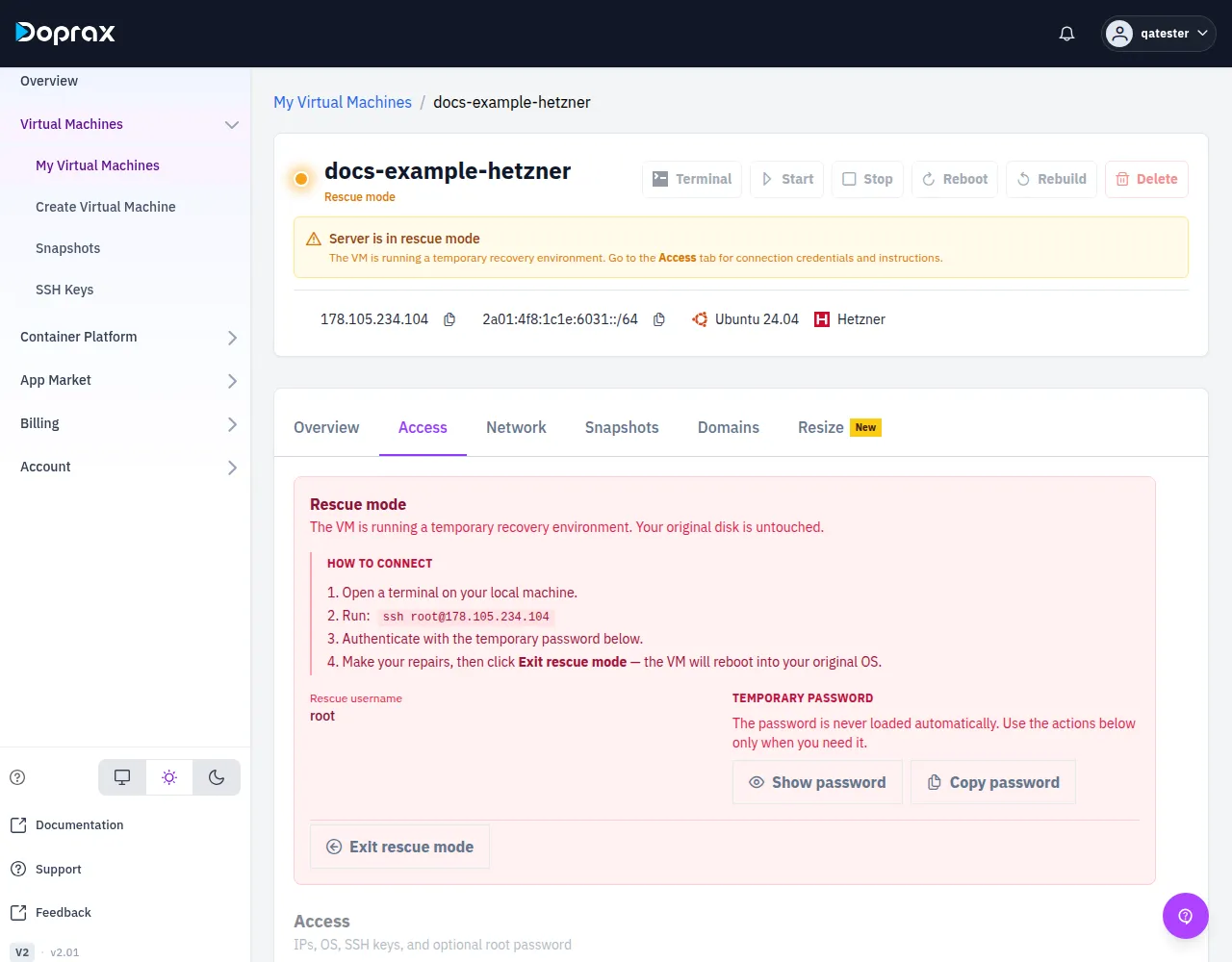
- The VM’s status reads Rescue mode, and a notice Server is in rescue mode is shown at the top of its page.
- The software on the VM’s own disk is not running: your websites and services are down.
- All other actions are switched off: Start, Stop, Reboot, Rebuild, Delete and the Terminal button. Leave rescue mode first.
- The VM is charged as usual.
Log in to the rescue system
Section titled “Log in to the rescue system”A Rescue mode panel is now at the top of the Access tab. Under How to connect it shows the command to run, and below that the login details.
-
Open a terminal on your own computer.
-
Run the command from the panel. It has this form:
Terminal window ssh root@YOUR_VM_IP -
Log in with what the panel shows:
Provider How you log in Hetzner With the Temporary password. Select Show password or Copy password OVH, VM created with a password With the password shown under Temporary password OVH, VM created with an SSH key With your SSH key. The panel shows its fingerprint and no password
If ssh warns that the host identification has changed, that is because the recovery system has
another fingerprint than your VM. Remove the stored one and run the command again:
ssh-keygen -R YOUR_VM_IPIf the connection gets no answer at all, see Connect to a VM: the same limits apply as for a normal login.
You are now in the recovery system, not in your own system. Your VM’s disk is attached but not in use. To work on its files you have to mount it: the steps are in Save your files from a broken VM.
Leave rescue mode
Section titled “Leave rescue mode”-
Log out of the recovery system.
-
On the Access tab, select Exit rescue mode in the Rescue mode panel.
The VM restarts from its own disk, and the normal login details on the Access tab are valid again.
Do not leave a VM in rescue mode longer than the repair takes: nothing on its own disk runs, and you still pay for it.
Checked against the product on 12 October 2026.