

Snapshots of a virtual machine
A snapshot is a copy of a VM’s disk as it is at one moment. It is stored on your account, apart from the VM. You take one when you ask for it; nothing takes snapshots for you.
Use a snapshot to:
- keep the state of a VM before a risky change, such as a system upgrade,
- create a second VM with the same content,
- keep what was on a VM after you delete the VM.
Which VMs can have snapshots
Section titled “Which VMs can have snapshots”Snapshots work on ProVM. For VMs of the other providers the catalogue has no snapshot price, and a request to create a snapshot of one is refused.
What a snapshot costs
Section titled “What a snapshot costs”The Create snapshot dialog shows the prices before you confirm:
| Charge | Price | When |
|---|---|---|
| Create snapshot | $0.20 each | Once, after the snapshot was created successfully |
| Snapshot storage | $0.20 per GB per month | For as long as the snapshot exists. Billed hourly |
- Storage is counted on the size of the snapshot image. It is shown as Size on Virtual Machines, Snapshots. If the image size is not known, the size of the VM’s disk is used.
- Storage is charged until you delete the snapshot. Deleting the VM does not end it.
- If your credit does not cover the creation charge, the snapshot is not kept.
Take a snapshot
Section titled “Take a snapshot”The VM must be Running or Stopped.
-
Open the VM from Virtual Machines, My Virtual Machines, and select the Snapshots tab.
-
Select Create snapshot.
-
Type a Description, for example
before upgrade. It is required. -
Tick I understand the snapshot creation cost and any recurring storage charge shown above.
-
Select Create.
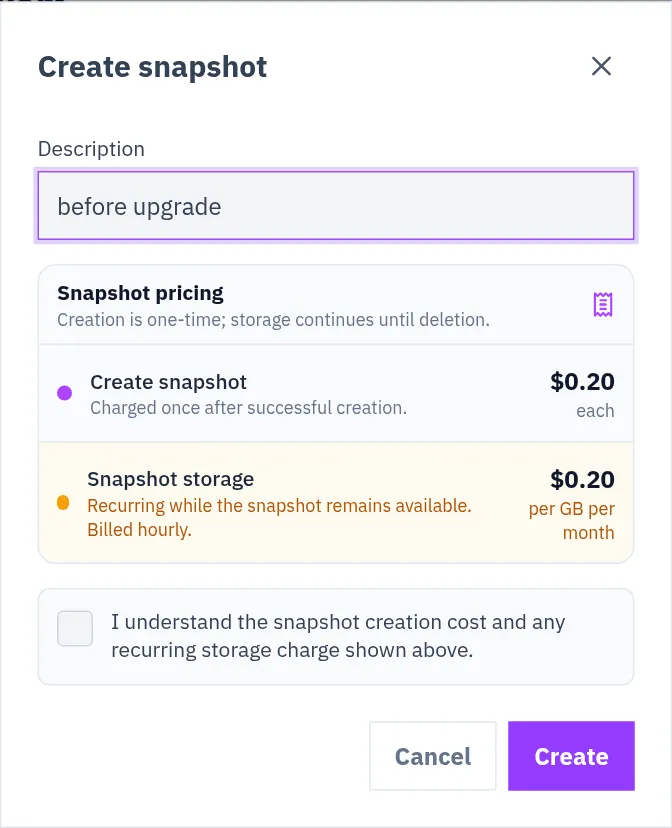
The snapshot appears in the list on the tab with its status. You can use it when the status is Available.
You can do the same from Virtual Machines, Snapshots, the page that lists the snapshots of all your VMs: select Take a Snapshot (the button reads Take Snapshot once you have snapshots), choose the VM under Select Service, type a description and select Take Snapshot.
Restore: a new VM from a snapshot
Section titled “Restore: a new VM from a snapshot”Restore creates a new VM. It does not change the VM the snapshot was taken from.
-
On the Snapshots tab of the VM, or on Virtual Machines, Snapshots, select Restore (new VM) on the snapshot.
-
On the VM’s tab a dialog tells you that the create page will open: select Continue. The Create Virtual Machine page opens with the provider and the snapshot already selected.
-
Choose location, size, access method and name, and create the VM.
The new VM is a VM like any other: it has its own IP addresses and its own price, and the first VM keeps running.
You can also start on the create page: under Choose an image source, select Snapshots and pick one. A snapshot can only be used with the provider it was taken on.
Two limits:
- Another location. A new snapshot can at first only be restored in the location of its VM. A copy that can be restored in the other locations is prepared automatically after the snapshot was taken. If you get the message that the snapshot is “region-bound”, try again later or select the original location.
- No room. If the dashboard says the snapshot’s host is out of capacity, choose a smaller plan or try again later.
Put a snapshot back on the same VM
Section titled “Put a snapshot back on the same VM”To replace a VM’s disk with one of its own snapshots, use Rebuild on the VM’s page and choose the snapshot there. Everything now on the disk is lost. See Rebuild.
Delete a snapshot
Section titled “Delete a snapshot”-
On the Snapshots tab of the VM, select Delete on the snapshot. On Virtual Machines, Snapshots, select the bin icon.
-
Confirm.
A deleted snapshot cannot be brought back. Its storage charge ends.
When the VM is deleted
Section titled “When the VM is deleted”Deleting a VM does not delete its snapshots.
- They stay on Virtual Machines, Snapshots.
- You can still create a new VM from them.
- You keep paying their storage price until you delete them.
If your account has no credit, the storage of such snapshots is not charged and not added up as a debt, and our team can remove them. See When your credit runs low.
Checked against the product on 12 October 2026.