

Deploy your first app
This page takes you from nothing to a web server answering on a public address. It uses the
ready-made nginx image so there is nothing to build. It takes about three minutes.
You need a Doprax account with some credit.
1. Create an App Space
Section titled “1. Create an App Space”-
In the dashboard, open Container Platform, then Create App Space.
-
Choose a Location and a Size. The smallest size, Standard 1, is enough for this page.
-
Type a Name, or keep the suggested one. Do this last: choosing a location fills in a suggested name again.
-
Select Create App Space.
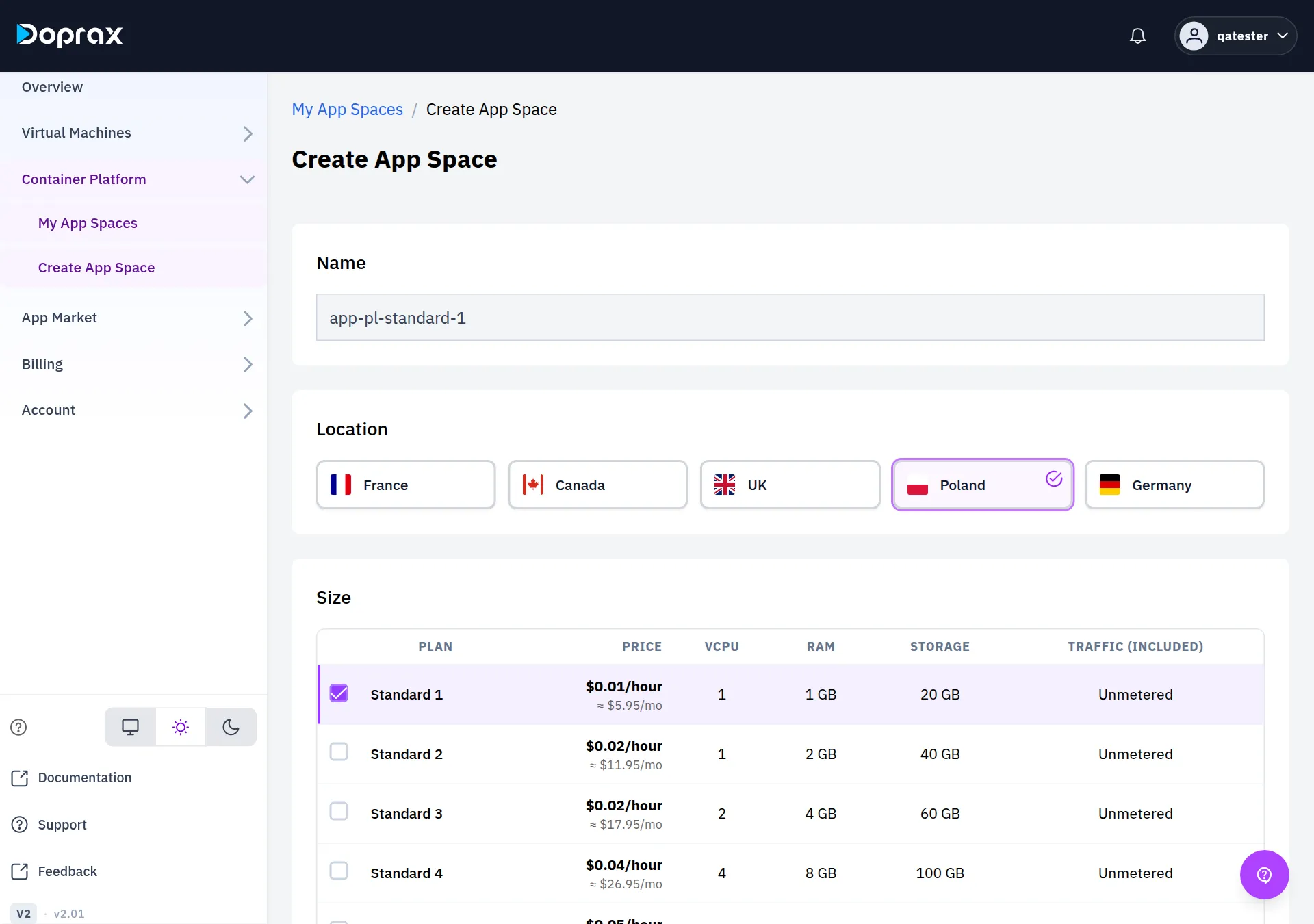
The App Space opens with the status Stopped. That is expected: there is nothing in it yet.
2. Add a container
Section titled “2. Add a container”-
Select Add container.
-
Keep Docker Image selected and pick Nginx from the popular images. The image name is filled in as
nginx:latest. For any other image, type its name. -
Keep the suggested Container Name or type your own, then select Add Container.
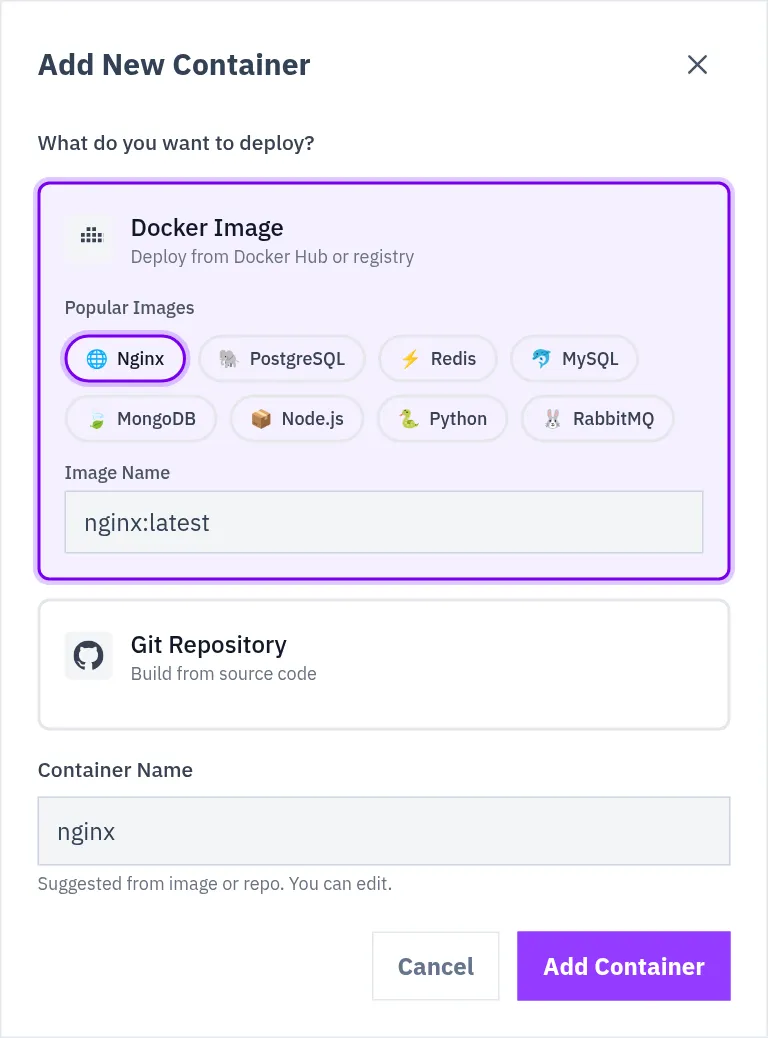
The container starts by itself. In under a minute the App Space shows Running · 1 of 1 container running.
3. Give it a public address
Section titled “3. Give it a public address”A new container is not reachable from the internet. To publish it:
-
Switch the container view to List and select the container.
-
Open its Ports tab and select Expose port.
-
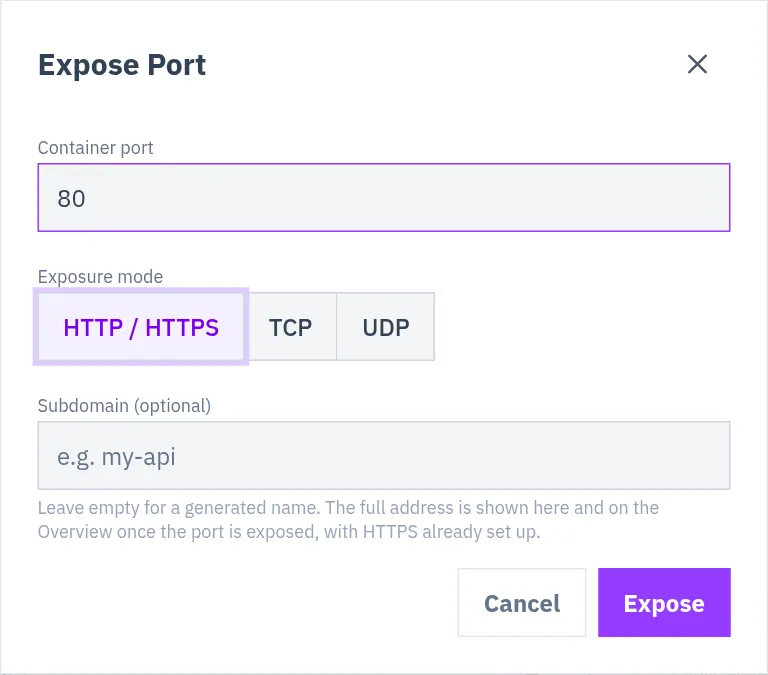
In Container port, type the port the program inside listens on. For nginx that is
80. -
Leave Exposure mode on HTTP / HTTPS, which is already selected. The Expose button becomes active once you leave the port field.
-
Optional: type a Subdomain to choose the first part of the address. Leave it empty for a generated one.
-
Select Expose.
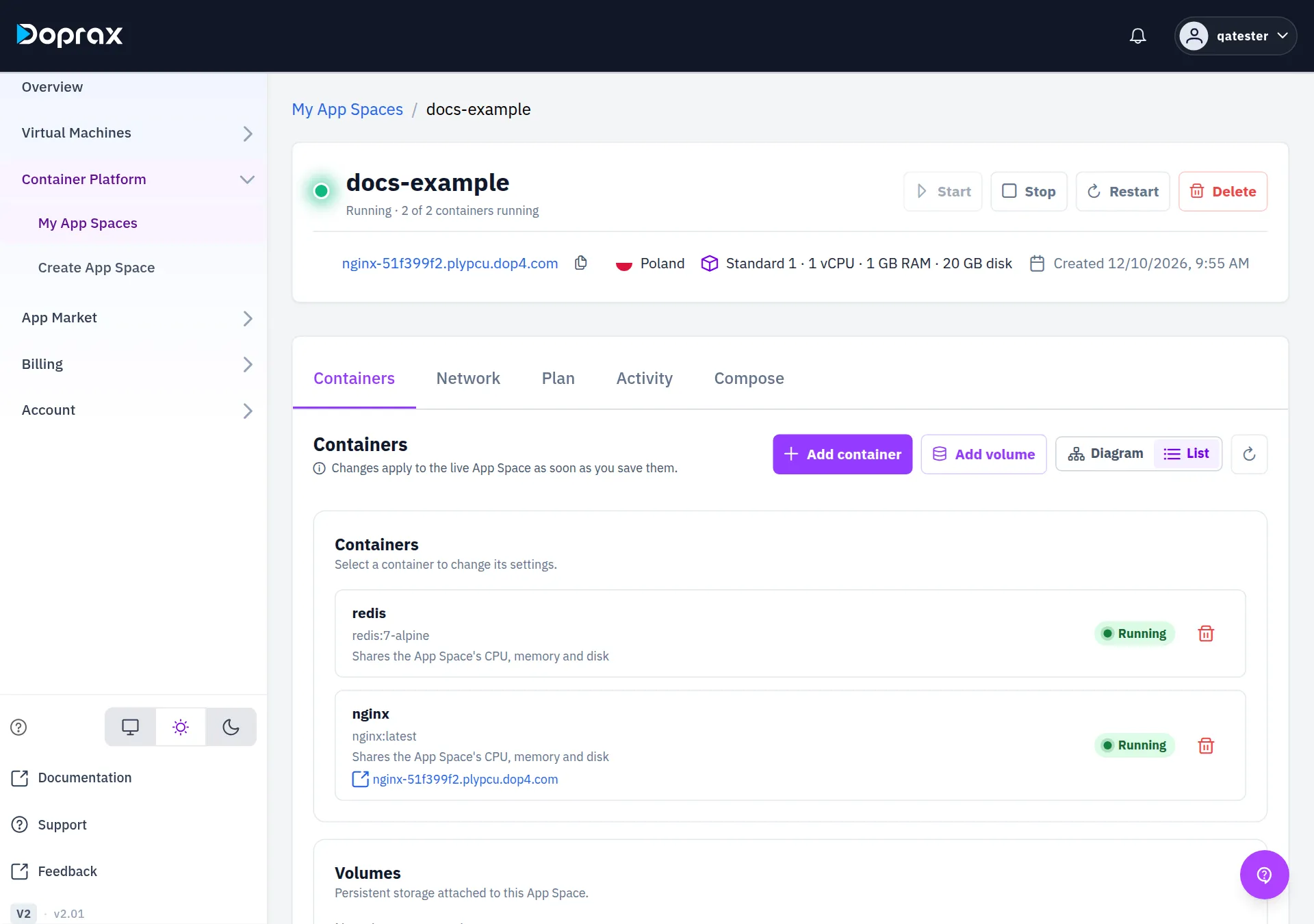
The address appears on the Ports tab and at the top of the App Space within a few seconds. It
looks like https://nginx-51f399f2.plypcu.dop4.com: the container’s name, a few random characters,
and a Doprax domain. Open it: you see the nginx welcome page.
- The address uses HTTPS with a certificate that is already set up. You do nothing for it.
- A visitor who types
http://is sent tohttps://.
4. Look inside
Section titled “4. Look inside”Select the container, then:
- Logs shows what the program prints, live. Requests to your address appear here as nginx logs them.
- Terminal opens a shell inside the container.
Both open in a panel at the bottom of the window.
5. Stop or delete
Section titled “5. Stop or delete”- Stop stops every container but keeps the App Space, and it is still charged.
- Delete removes the App Space with all its containers, its volumes and their data. This cannot be undone, and it ends the charge.
- Deploy from a GitHub repository: run your own code.
- Configure a container: environment variables, volumes, a database next to your app.
Checked against the product on 12 October 2026.