

Use a domain name with a virtual machine
A VM can be reached by a name as well as by its IP address. Each VM gets one name from Doprax, and you can add your own domains. Both are on the Domains tab of the VM’s page.
The automatic subdomain
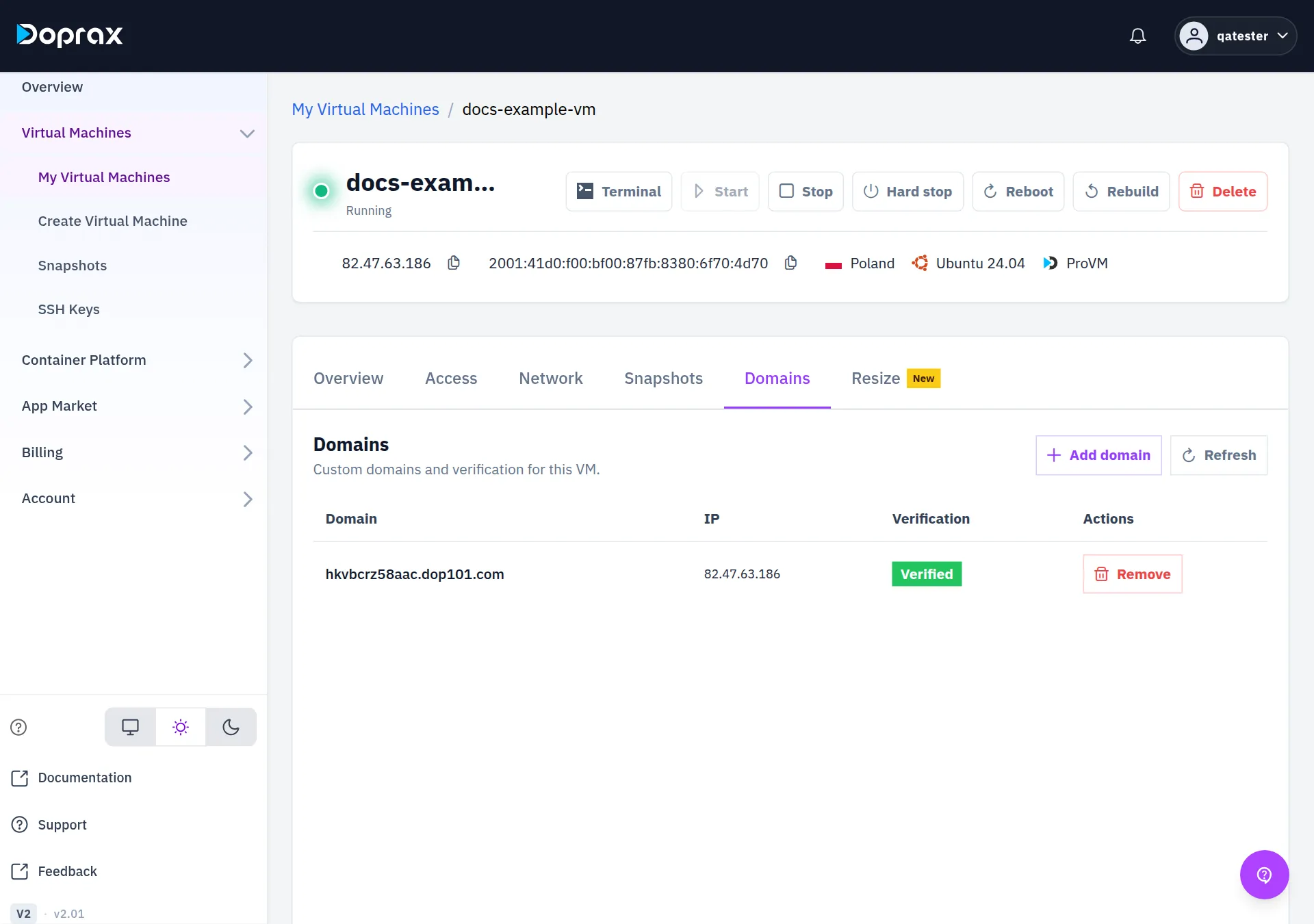
Section titled “The automatic subdomain”When a VM is set up, Doprax gives it one subdomain of a Doprax domain, with a random name. Its DNS record points to the VM’s IPv4 address, and it is listed on the Domains tab as Verified.
- It is free.
- You do not have to do anything for it. If the VM gets a new IP address, the record follows.
- It is removed when the VM is deleted.
Add your own domain
Section titled “Add your own domain”Adding your own domain is free, and there is no limit on how many a VM has.
-
Open the VM from Virtual Machines, My Virtual Machines, and select the Domains tab.
-
Select Add domain.
-
Type the name under Domain name, for example
example.comorapp.example.com. -
Select Add domain. The domain is listed as Unverified, with the VM’s IPv4 address in the IP column.
-
At your DNS provider, create an A record for the same name with that IPv4 address as its value.
-
Back on the Domains tab, select Verify on the domain.
Names that are accepted:
- A domain or one subdomain of it:
example.com,app.example.com,example.co.uk. - A leading
www.is dropped:www.example.comis stored asexample.com. - A name with more than three parts, such as
app.example.co.ukora.b.example.com, is refused as an invalid domain name.
How verification works
Section titled “How verification works”When you select Verify, Doprax asks a public DNS server (Google’s, 8.8.8.8) for the A records of the name. If one of them is the VM’s IPv4 address, the domain becomes Verified.
If it fails with “Failed to verify domain”:
- The record is not visible yet. A new DNS record can take some time to reach public DNS servers. Wait and select Verify again. See How DNS works.
- The record points somewhere else. Compare its value with the IP column.
- A proxy is in front. If your DNS provider answers with its own address instead of your VM’s (the proxy option of Cloudflare does this), the check cannot find the VM’s address. Switch the proxy off for this record, verify, and switch it on again if you want it.
- Only an AAAA record exists. The check reads A records, so the name needs an A record with the IPv4 address.
Verification is done once, when you ask for it. It is not repeated later.
What a domain on a VM does, and does not do
Section titled “What a domain on a VM does, and does not do”- It is a record in the dashboard. Adding a domain changes nothing inside the VM: no web server is set up and no certificate is requested. The software on your VM has to answer for the name.
- App Market apps use it. An app that you install from the App Market and that needs a domain is given the domain that was added to the VM first. Normally that is the automatic subdomain.
- Your own DNS stays yours. If the VM’s IP address changes, update the A record of your own domains yourself. See Change the IP address.
Remove a domain
Section titled “Remove a domain”On the Domains tab, select Remove on the domain. It is removed at once, without a confirmation. For your own domain, also delete the A record at your DNS provider if you no longer need it.
More automatic subdomains
Section titled “More automatic subdomains”A VM has the one automatic subdomain it was created with. The Add domain dialog has no option to request another.
Account, Security lists Number of Extra Subdomains per month under Account quota (5 unless it was raised for your account). The platform’s rule behind that number is: the first automatic subdomain of a VM is free, and each further one costs $0.50, charged when it is created. With the dashboard as it is today you cannot request a further one, so you are not charged for one. To put more names on a VM, add your own domains.
Checked against the product on 12 October 2026.