

Deploy a MikroTik Cloud Hosted Router (CHR) on a ProVM
MikroTik’s Cloud Hosted Router (CHR) is RouterOS made for virtual machines. It has the full RouterOS feature set: firewall, VPN server, bandwidth control, proxy and routing. On Doprax, MikroTik is one of the operating systems you can choose when you create a ProVM.
Doprax keeps the virtual machine (VM) running. What you configure inside RouterOS is yours to manage.
Before you start
Section titled “Before you start”- A Doprax account with credit.
- A mikrotik.com account. You need it for the licence.
- A browser, for WebFig. Or WinBox, MikroTik’s own management app.
1. Create the VM
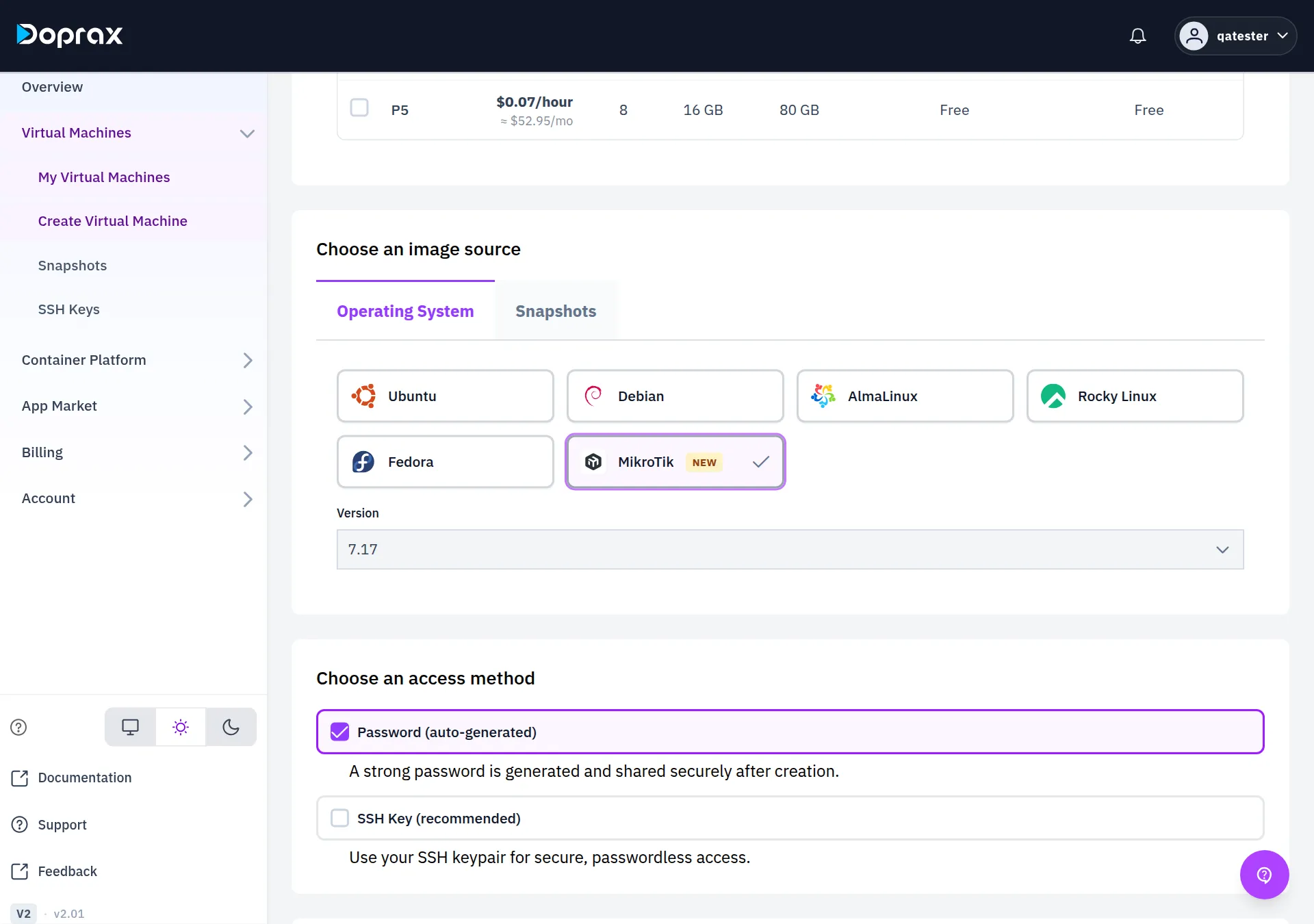
Section titled “1. Create the VM”- In the dashboard, open Virtual Machines, then Create Virtual Machine.
- Choose a provider: ProVM. The MikroTik image is offered on ProVM only.
- Choose a location and Choose a size. Every ProVM plan can run the image. See Plans and prices.
- Under Choose an image source, on the Operating System tab, select MikroTik. Then pick the version under Version. The list of operating systems depends on the provider, location and size, so choose those first.
- Choose an access method: Password (auto-generated). WebFig and WinBox sign in with a password, and for a VM created with an SSH key the dashboard has no password to show.
- Enter a name and select Create Virtual Machine.
2. Sign in to RouterOS
Section titled “2. Sign in to RouterOS”When the VM’s status is Running, open it and select the Access tab. It shows:
- Username:
admin. - Web UI: the address of WebFig,
http://YOUR_VM_IP. - Show password and Copy password: the generated password. The section is titled
ROOT PASSWORD; on a MikroTik VM it is the password of
admin.
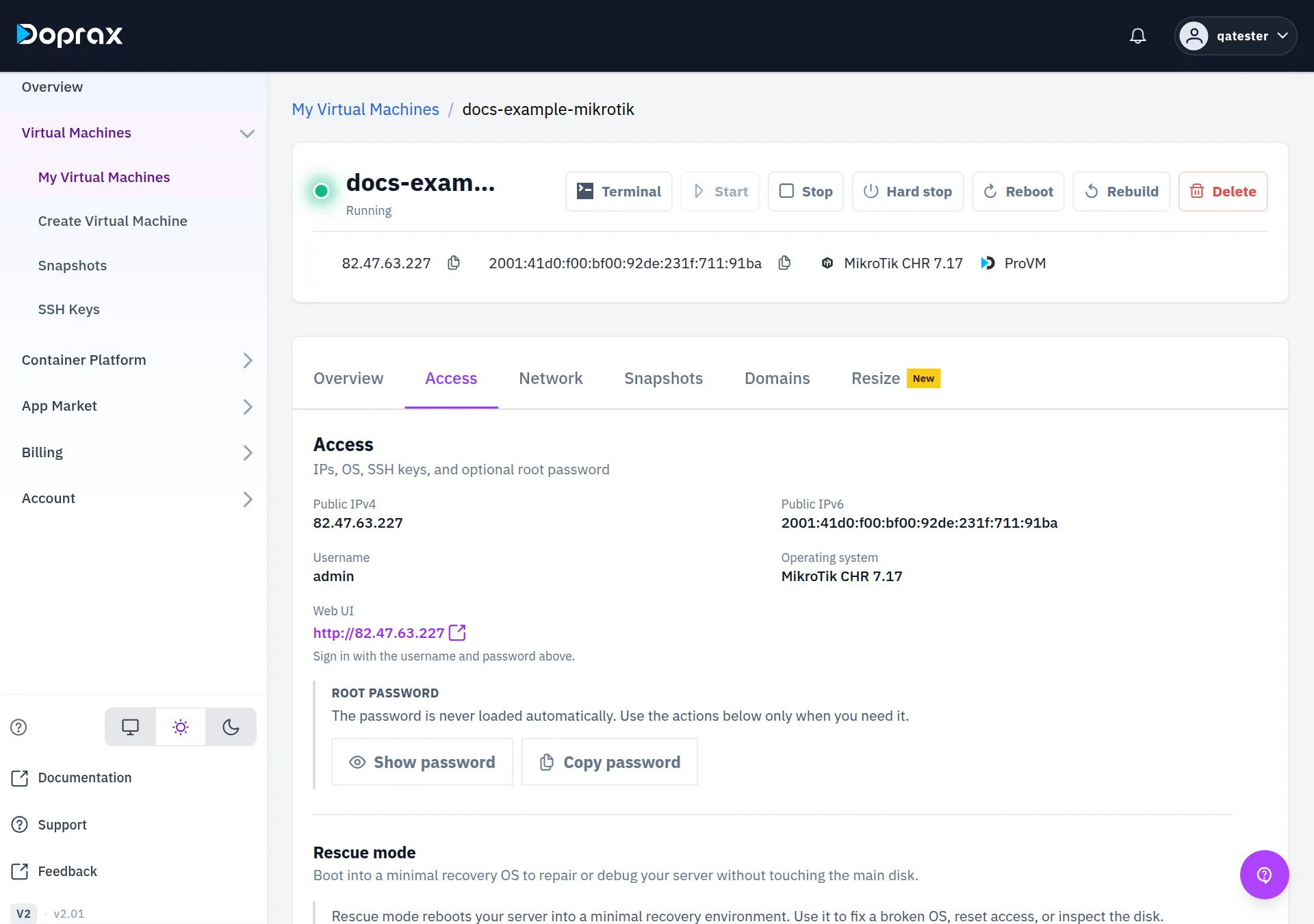
With WebFig (browser): select the Web UI link and sign in with the username and the password.
With WinBox: enter the VM’s IP address, the username admin and the password, then connect.
WebFig at an http:// address is not encrypted. For regular work, use WinBox.
3. Activate a licence
Section titled “3. Activate a licence”A new CHR runs on MikroTik’s free licence, which limits the upload speed of each interface to 1 Mbit per second. That is enough to set the router up, not to use it.
- In WinBox or WebFig, open System, then License.
- Select Renew License.
- Enter the email address and password of your mikrotik.com account.
- Choose a level. The router gets a 60-day trial of that level. To keep the level after the trial, pay for it in your mikrotik.com account.
MikroTik’s licence levels are named P1, P10 and P-unlimited. They have nothing to do with the Doprax plans P1 to P5.
4. Secure the router
Section titled “4. Secure the router”Change the password of admin. Open the RouterOS terminal (Terminal in WebFig, New
Terminal in WinBox) and run:
/user set admin password="A-LONG-NEW-PASSWORD"Doprax does not learn the new password: the Access tab keeps showing the generated one. Keep the new password yourself.
Add firewall rules. On a ProVM every port can be reached from the internet, and the Doprax dashboard has no firewall setting. Until you add rules to RouterOS’s own firewall, anyone can reach the router’s login pages. MikroTik’s guide to securing a router and its WireGuard guide are in the RouterOS documentation.
Good to know
Section titled “Good to know”- Rebuild replaces the disk. A rebuild of the VM removes the RouterOS configuration. See Rebuild a VM.
- A stopped VM is charged at its full price. To stop paying, delete the VM.
Checked against the product on 12 October 2026.