

Add more IPv4 addresses to a ProVM
A ProVM comes with one public IPv4 address and one IPv6 address. You can attach up to 5 more public IPv4 addresses to it, one at a time.
Before you start
Section titled “Before you start”- ProVM only. VMs of the other providers do not have the Add IP button.
- IPv4 only. There are no additional IPv6 addresses.
- Up to 5 per VM. The Network tab shows how many are in use, for example 2 of 5 used.
- Each one reboots the VM. Adding an address restarts the VM, and so does removing one. The VM must be Running.
- You cannot choose the address.
What it costs
Section titled “What it costs”The dashboard states the price in the Add an additional IP dialog:
| Charge | Price | When |
|---|---|---|
| Setup | $1 | Once, when the address has been attached |
| The address | $1 per month | Billed hourly for as long as it is attached |
To add an address, your credit must cover the setup charge and one month of the address. If it does not, the request is refused and the VM is not restarted.
The setup charge is not paid back when you remove the address.
Add an address
Section titled “Add an address”-
Open the VM from Virtual Machines, My Virtual Machines, and select the Network tab.
-
Under IP addresses, select Add IP.
-
Read the dialog: it says how many addresses the VM has, that the VM will reboot, and the price.
-
Select Add & reboot.
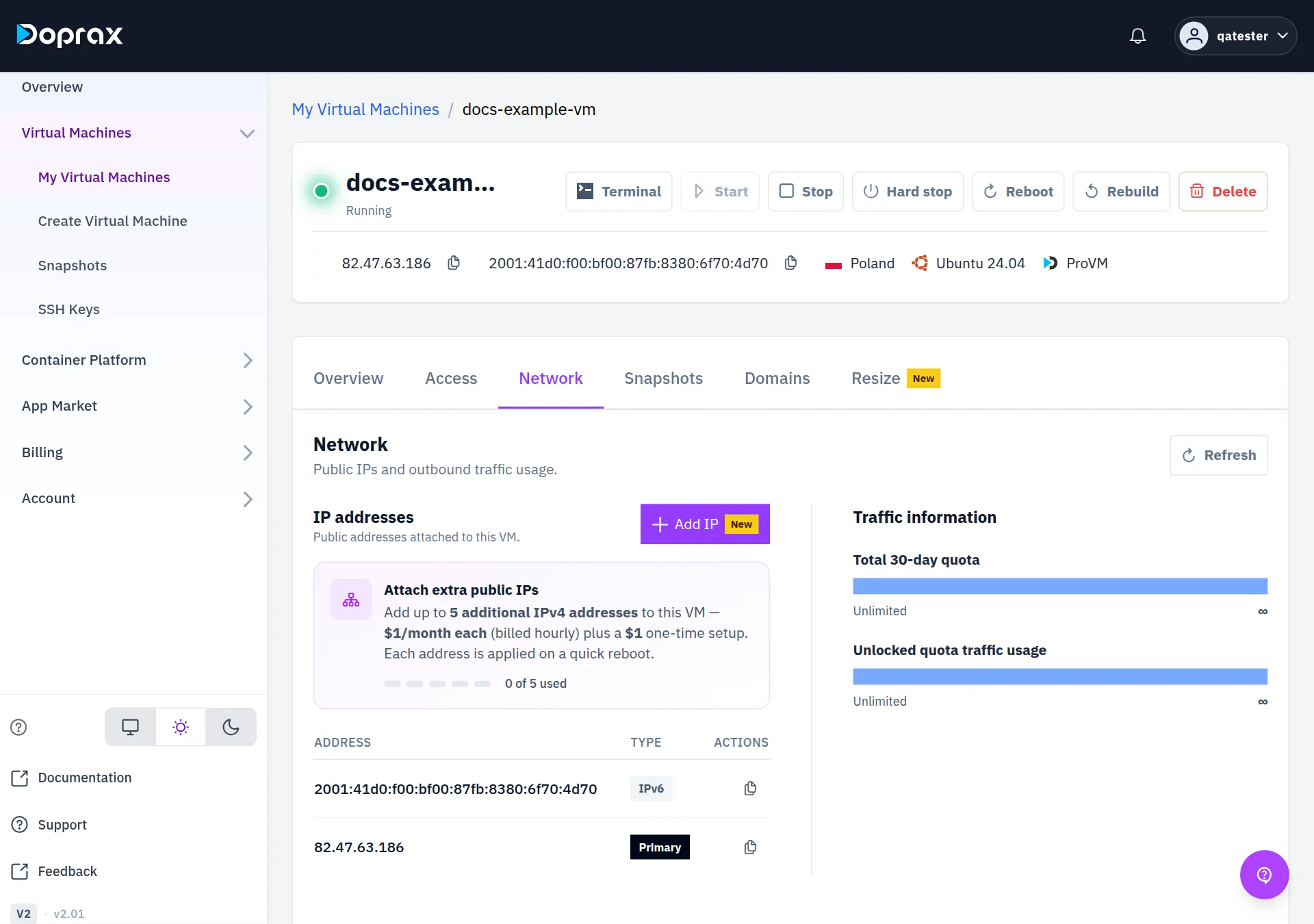
The VM restarts. When it is done, the new address is in the IP addresses table with the type Additional, next to the Primary address and the IPv6 address.
The dashboard’s own description of this step is that each address “is applied on a quick reboot”. After the reboot, check inside the VM that the address is there:
ip -4 addrRemove an address
Section titled “Remove an address”-
On the Network tab, select the bin icon on the row of the Additional address.
-
Select Remove & reboot.
The VM restarts, the address is released, and its monthly charge stops. The Primary address has no bin icon: it cannot be removed.
What else to know
Section titled “What else to know”- Deleting the VM releases its additional addresses. Their charge ends with the VM.
- The primary address stays the address of the VM everywhere in the dashboard: on the Access tab, in the Terminal button and in the VM’s automatic subdomain.
Checked against the product on 12 October 2026.