

Review an app or report an issue with it
Every app in the App Market has reviews and issues on its page. A review is your rating of the app. An issue is a problem you report to the app’s publisher. Both are public: anyone who opens the app’s page can read them, with your user name.
You must be signed in to write a review or report an issue. You do not have to have installed the app.
Write a review
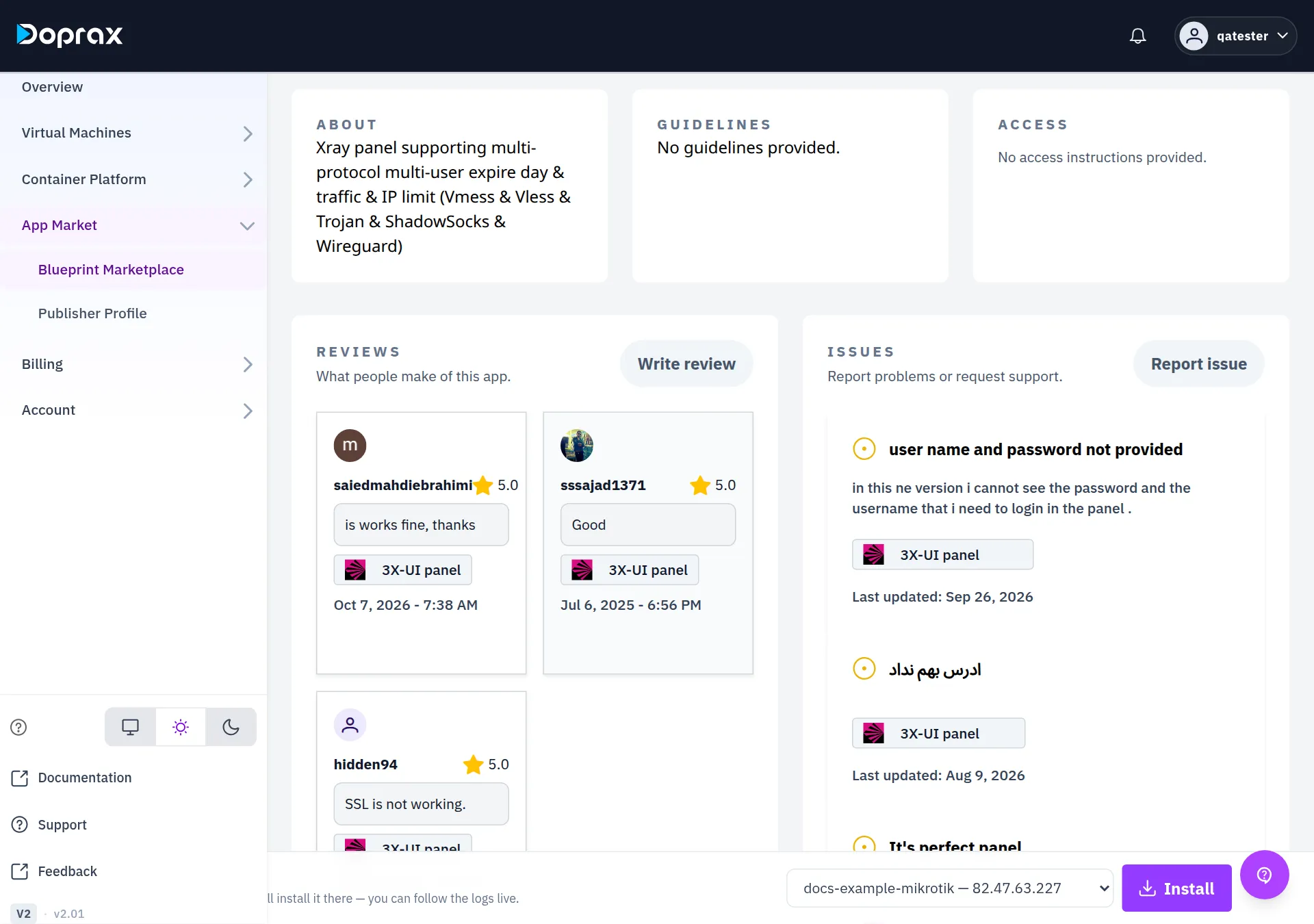
Section titled “Write a review”- Open the app’s page from App Market > Blueprint Marketplace.
- Under REVIEWS, select Write review.
- In the window Give Your Feedback, select one to five stars.
- Type your reasons, in up to 130 characters. The text is required.
- Select Submit rating.
What to know:
- You have one review per app. If you send another one, it replaces your earlier review: the stars and the text.
- When your review is one of those shown on the page, the button is named Edit review and the window opens with your stars and text. Otherwise it is named Write review and opens empty. In both cases your earlier review is replaced.
- You cannot delete a review. You can only replace it.
- You cannot review your own app. The publisher of an app does not get the button.
- The app’s page shows the three newest reviews. The star on the app’s card is the average of all its reviews.
- All reviews of a publisher’s apps are on the publisher’s profile, on the Reviews tab.
Report an issue
Section titled “Report an issue”- Open the app’s page.
- Under ISSUES, select Report issue.
- In the window Raise an issue, fill in Issue subject and Description. The description holds up to 150 characters.
- Select Raise issue.
The issue appears under ISSUES with the status Pending.
The description is short. Say what failed in it, then open the issue and add the details as a message: what you did, the VM’s operating system, and the lines of the install log that show the error.
Follow an issue
Section titled “Follow an issue”Select the issue in the list. A panel opens on the right with the status, the subject, the description and the conversation.
- To write, type in Type a message and select Send.
- To answer one message, select Reply this comment under it.
- Every signed-in customer can write in an issue, not only the reporter and the publisher.
- A closed issue has no message box.
Doprax sends no email and no notification about issues. Nobody is told when an issue is opened, answered or changed. Come back to the app’s page to look.
The app’s page shows the six newest issues. Older issues of an app from another customer are on
that publisher’s profile, on the Issues tab. For an app published by doprax there is no
profile, so issues older than the six newest cannot be opened in the dashboard.
Who can change the status of an issue
Section titled “Who can change the status of an issue”| Status | Who can set it |
|---|---|
| Pending | The publisher of the app. A new issue starts here |
| Ongoing | The publisher of the app |
| Resolved | The publisher of the app |
| Closed | Only the customer who reported the issue |
- If you reported the issue, you see Close issue at the bottom of the panel. Use it when the problem is solved for you. You cannot set the other statuses.
- If you published the app, you see a list with the status at the top of the panel. Choose Pending, Ongoing or Resolved. You cannot close an issue that someone else reported.
- Everyone else sees the status and cannot change it.
Closing does not lock the status. The publisher can still set a closed issue to Pending, Ongoing or Resolved.
For an app published by doprax, no customer account is the publisher. The status of its issues
stays Pending in the dashboard until the reporter closes the issue.
If you publish apps: find the issues on your apps
Section titled “If you publish apps: find the issues on your apps”- In the dashboard menu, select App Market, then Publisher Profile.
- Select the Issues tab. It lists the issues that customers reported on all your apps.
- Select an issue to read it, answer it and set its status.
The number Open issues on the Profile tab counts all issues on your apps, the closed and resolved ones too.
There is no list of the issues that you reported yourself on other publishers’ apps. Find them on the page of the app.
Checked against the product on 12 October 2026.