

Start, stop, reboot and delete a virtual machine
The buttons at the top of a VM’s page control its power and its life: Start, Stop, Hard stop, Reboot, Rebuild and Delete. Open the VM from Virtual Machines, My Virtual Machines to see them.
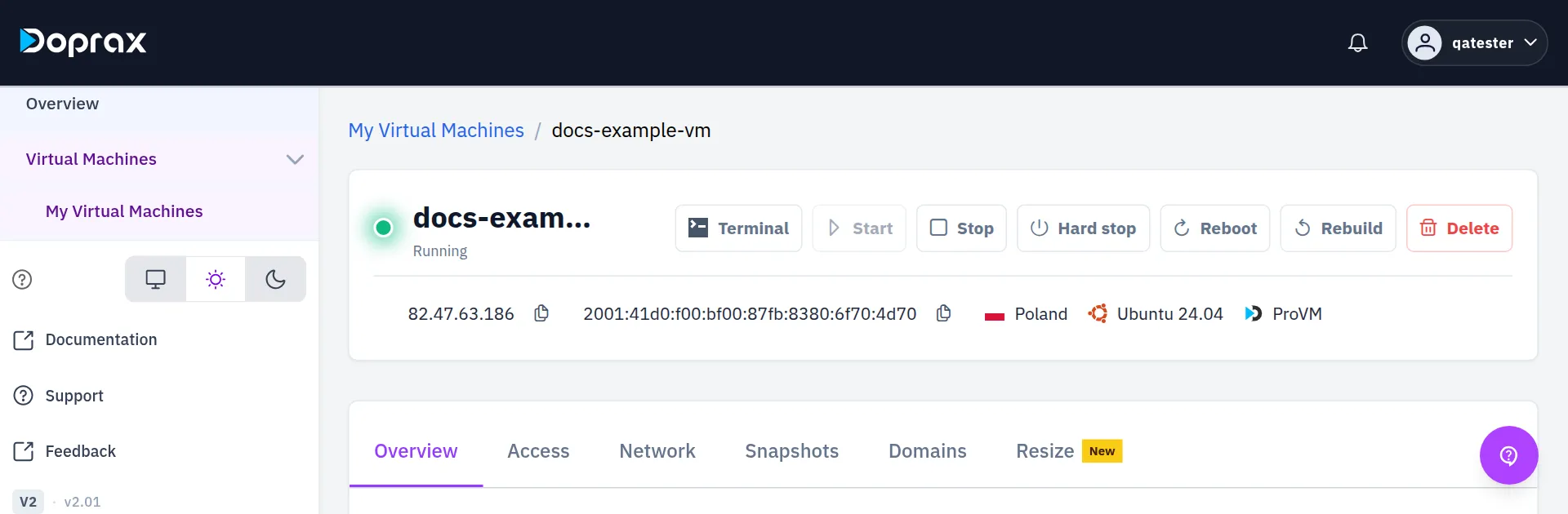
The buttons
Section titled “The buttons”| Button | What it does | Asks you to confirm |
|---|---|---|
| Start | Powers on a stopped VM. Needs credit on your account | No |
| Stop | Shuts the VM down. Its disk and its IP addresses stay yours | No. It acts at once |
| Hard stop | Cuts the power of the VM without shutting the system down. ProVM only | Yes, with a tick box |
| Reboot | Restarts a running VM | No. It acts at once |
| Rebuild | Replaces the disk with a fresh system or a snapshot. See Rebuild | Yes |
| Delete | Removes the VM for good | Yes, with a tick box |
Stop and Reboot have no “are you sure” step. The moment you select one, the VM goes down.
Every action is listed with its result under Recent activity on the Overview tab.
A stopped VM costs the same
Section titled “A stopped VM costs the same”A stopped VM is charged at the same price as a running one. Its disk and its IP addresses stay reserved for you. To stop paying for a VM, delete it. See What a virtual machine costs.
Stop or Hard stop
Section titled “Stop or Hard stop”On a ProVM, Stop asks the system to shut down in the normal way, so it can close its programs and write its data first. Use it whenever the VM still responds.
Hard stop is for a ProVM that is stuck and does not shut down. It is the same as pulling the plug:
- Data that was only in memory is lost.
- The filesystem may need a check at the next start.
- It also works while the VM hangs in Starting or Stopping, or shows an error.
To use it, select Hard stop, tick I understand this is a forced power-off and may cause data loss. and select Hard stop again. VMs of other providers do not have this button.
On the other providers, Stop and Reboot send that provider’s own command, and it is not a clean shutdown everywhere: on DigitalOcean Stop is a power-off, and on OVH Reboot is a hard reboot. If such a VM runs a database, shut the system down from inside the VM first.
Waits between actions
Section titled “Waits between actions”A VM needs time to settle after its power state changed. During that time every other action on the same VM is refused with a message that says how many seconds are left.
| After | You wait |
|---|---|
| Start | 60 seconds |
| Reboot | 90 seconds |
| Stop or Hard stop | 15 seconds |
| An IP address change | 90 seconds |
Two more rules:
- One action at a time. While an action is running, the buttons are switched off.
- 3 seconds must pass between any two requests for the same VM.
When a button is switched off
Section titled “When a button is switched off”Which buttons work depends on the VM’s status. Hover over a greyed-out button to read the reason.
| Status | What you can do |
|---|---|
| Running | Stop, Reboot, Rebuild, Delete |
| Stopped | Start, Rebuild, Delete |
| Starting, Stopping, Rebooting | Nothing until it has finished. On a ProVM, Hard stop |
| Error, Failed | Reboot, Delete. On a ProVM, also Hard stop |
| Frozen | Delete. A VM is frozen when your credit ran out: see When your credit runs low |
| Rescue mode | Nothing until you leave rescue mode |
Start is also refused when your account has no credit left.
Delete a VM
Section titled “Delete a VM”-
If you want to keep what is on the disk, copy it somewhere else first, or take a snapshot.
-
On the VM’s page, select Delete.
-
Tick I understand this deletion is permanent, billing may finalize, and this cannot be undone.
-
Select Delete.
The VM is charged up to the moment it is deleted, and then no more.
| Gone with the VM | Kept |
|---|---|
| The VM and its disks | Your snapshots of the VM |
| Its IP addresses, also additional ones | Your SSH keys |
| Its domains and the DNS record of its automatic subdomain |
Snapshots stay, and they still cost storage. After the VM is gone they are listed on Virtual Machines, Snapshots. You can create a new VM from one, and you pay their storage price until you delete them.
Checked against the product on 12 October 2026.