

Rebuild a virtual machine
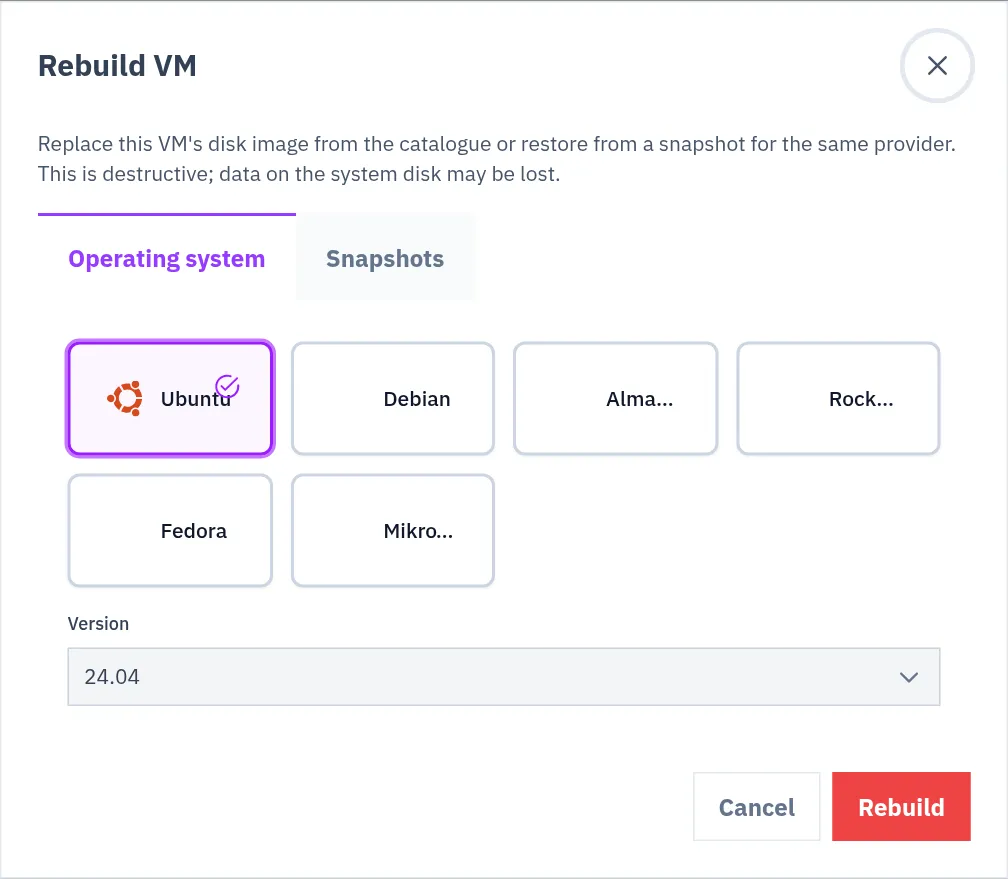
Rebuild replaces what is on a VM’s disk, either with a freshly installed operating system or with a snapshot of the same VM. The VM itself stays: you keep its IP address and go on paying the same plan.
What stays and what is lost
Section titled “What stays and what is lost”| Stays | Lost |
|---|---|
| The VM, its name, its plan and its price | Everything on the disk |
| Its location | The list of apps installed from the App Market on this VM |
| Its IP addresses | |
| Its domains | |
| Its snapshots |
A rebuild is not charged separately.
Which VMs can be rebuilt
Section titled “Which VMs can be rebuilt”- Not VMs on Gcore and Scaleway: a rebuild is not available for these two providers.
- The VM must be Running. A ProVM can also be rebuilt while it is Stopped.
Rebuild with a fresh operating system
Section titled “Rebuild with a fresh operating system”-
Open the VM from Virtual Machines, My Virtual Machines, and select Rebuild.
-
On the Operating system tab of the Rebuild VM dialog, select a system and its Version. The systems offered are the ones the VM’s plan offers when you create a VM. You may choose a different system from the one the VM has now.
-
Select Rebuild.
Rebuild from a snapshot
Section titled “Rebuild from a snapshot”This puts the VM back to the state of one of its own snapshots.
-
On the VM’s page, select Rebuild, then the Snapshots tab of the dialog.
-
Select the snapshot. Only snapshots taken from this VM, with the status Available, can be used.
-
Type
REBUILDin the field that appears. -
Select Rebuild.
To use a snapshot of another VM, create a new VM from it instead: see Snapshots.
While it runs, and after
Section titled “While it runs, and after”With a fresh operating system, the VM’s status is Starting while the disk is replaced and the new system starts. When the system accepts SSH connections again, the status becomes Running.
With a snapshot, the dashboard confirms with Rebuild started. The VM cannot be reached until its disk has been restored.
After a rebuild:
-
The Access tab shows the username and how to log in. See Connect to a VM.
-
The Installed apps list on the Overview tab is emptied. After a fresh operating system the apps themselves are gone with the disk: install them again.
-
After a fresh operating system,
sshon your computer warns that the host identification has changed, because the new system has a new fingerprint. Remove the old one and connect again:Terminal window ssh-keygen -R YOUR_VM_IP
Rebuild, restore or a new VM
Section titled “Rebuild, restore or a new VM”| You want | Use |
|---|---|
| The same VM and IP address with a clean system | Rebuild, Operating system |
| The same VM back at an earlier state | Rebuild, Snapshots |
| A second VM with the content of a snapshot | Restore (new VM) on the snapshot |
| More CPU, memory or disk without losing data | Resize |
Checked against the product on 12 October 2026.