

SSH keys explained, and how to stop using passwords
An SSH key lets you log in to a server without a password. It is safer than a password and, once set up, less work. This page explains what a key is, and shows how to create one and use it with a Doprax virtual machine (VM).
Why not a password
Section titled “Why not a password”Every server on the internet is tried all day by programs that guess passwords, one after another. A short or common password falls quickly. A good one can still leak: typed into the wrong website, or reused on a service that is breached. Whoever learns the password is in.
What an SSH key is
Section titled “What an SSH key is”An SSH key is a pair of files that belong together:
| File | Where it lives | Share it? |
|---|---|---|
The private key, id_ed25519 |
On your own computer only | Never |
The public key, id_ed25519.pub |
On every server you log in to | Yes, freely |
When you connect, the server uses your public key to set a challenge that only the private key can answer. Your computer answers it. The private key never leaves your computer, so it cannot be stolen from the network or from the server.
A private key is also far too long to guess. The programs that guess passwords have nothing to try.
Create a key
Section titled “Create a key”Do this on your own computer, not on the server. Open a terminal and run:
-t ed25519chooses a modern, strong type of key.-Cadds a note to the key, so that you can tell your keys apart. An email address is the usual choice.- Press Enter to accept the suggested file.
- When it asks for a passphrase, type one. The passphrase protects the private key file: someone who copies the file cannot use it without the passphrase.
You now have two files in the .ssh folder of your home directory: id_ed25519 and
id_ed25519.pub. Show the public key, to copy it:
cat ~/.ssh/id_ed25519.pubIt is one line that starts with ssh-ed25519.
The same commands work in the terminal of Linux and macOS, and in PowerShell on Windows 10 and later.
Use the key for a new Doprax VM
Section titled “Use the key for a new Doprax VM”- In the dashboard, open Virtual Machines, then SSH Keys.
- Select Add SSH key.
- Type a Title, for example the name of your computer, and paste the line into Public key. Then select Add SSH key.
- Create the VM. Under Choose an access method, select SSH Key (recommended) and choose your key.
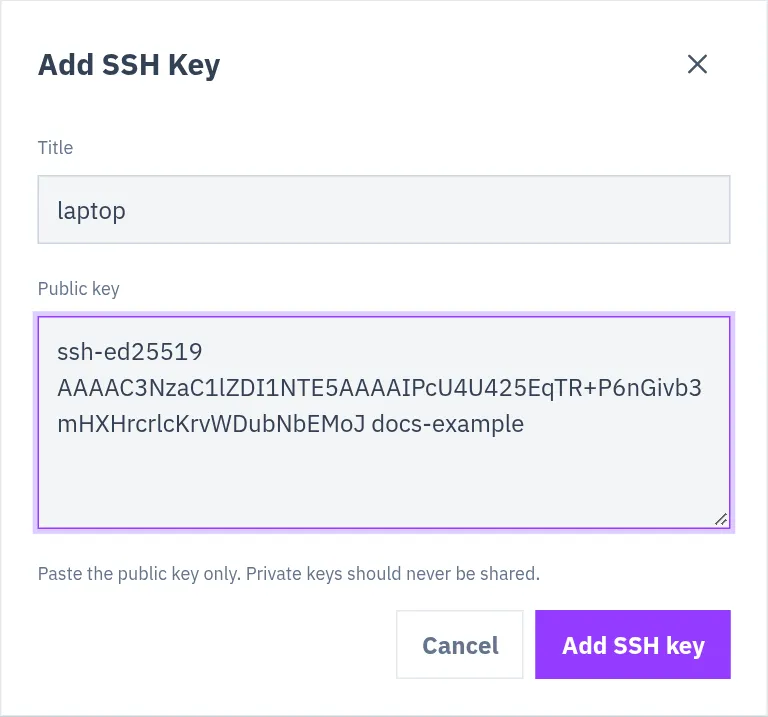
Then log in. No password is asked:
ssh root@YOUR_VM_IPA VM created this way has no root password in the dashboard: its Access tab says that the VM was created with SSH key access.
More about the SSH Keys page: SSH keys.
Put the key on a VM you already have
Section titled “Put the key on a VM you already have”If you log in to the VM with a password today, copy your public key to it:
ssh-copy-id root@YOUR_VM_IPIt asks for the password one last time and installs the public key. After that,
ssh root@YOUR_VM_IP logs you in with the key.
Windows has no ssh-copy-id. In PowerShell, this does the same:
type $env:USERPROFILE\.ssh\id_ed25519.pub | ssh root@YOUR_VM_IP "mkdir -p ~/.ssh && cat >> ~/.ssh/authorized_keys"Turn password login off
Section titled “Turn password login off”A key makes your own login safer. But as long as the server still accepts passwords, the guessing programs can keep trying. The last step is to make the key the only way in.
-
On the VM, see whether password login is on:
Terminal window sshd -T | grep -i passwordauthenticationIf it prints
passwordauthentication no, there is nothing to do. -
Turn it off with a small settings file:
Terminal window echo "PasswordAuthentication no" > /etc/ssh/sshd_config.d/00-no-passwords.conf -
Check the settings for mistakes, then restart the SSH service:
Terminal window sshd -tsystemctl restart sshThe service is named
sshon Ubuntu and Debian. On AlmaLinux, Rocky Linux and Fedora it issshd: runsystemctl restart sshd. -
Run the command of step 1 again. It must now print
passwordauthentication no.
Good habits
Section titled “Good habits”- One key per person and per computer. When someone leaves or a laptop is lost, remove that one key.
- Never send a private key to anyone, and never paste it into a website. The SSH Keys page takes the public key only.
- Remove keys you no longer use.
Checked against the product on 12 October 2026.