

Connect to a virtual machine
You can log in to a VM in two ways: with the Terminal button in the dashboard, which needs nothing installed, or with an SSH program on your own computer.
Wait until the VM’s status, shown under its name, is Running. A new VM shows Starting while it is being set up.
What you need
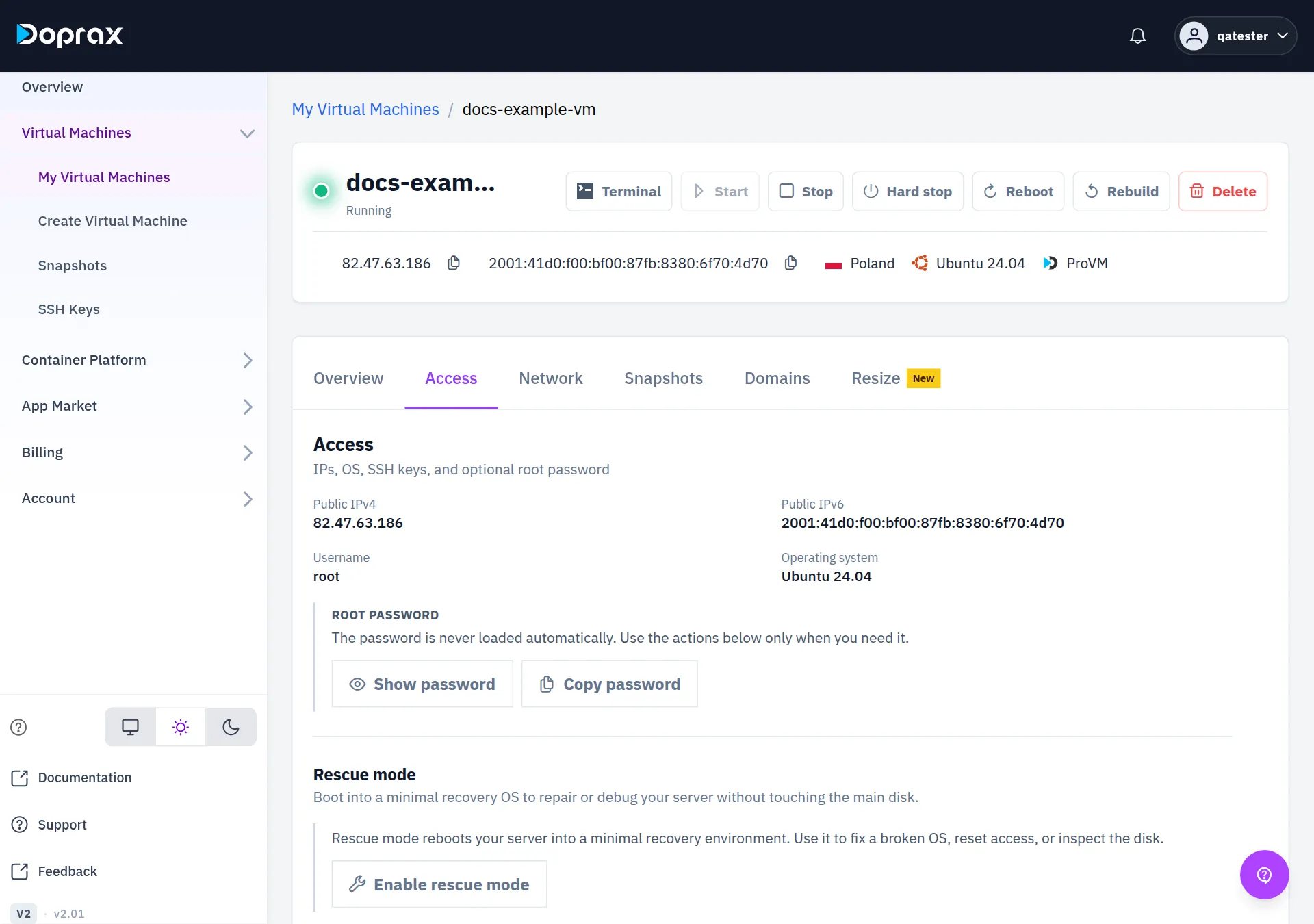
Section titled “What you need”Open the VM from Virtual Machines, My Virtual Machines, and select the Access tab.
| What | Where it is |
|---|---|
| IP address | Public IPv4 and Public IPv6 on the Access tab. Both are also at the top of the VM’s page, each with a copy button |
| Username | Username on the Access tab. It is root. On a MikroTik image it is admin |
| Password | Under ROOT PASSWORD: select Show password to read it, or Copy password to copy it without showing it |
The password is generated when the VM is created. The dashboard does not load it until you select one of the two buttons.
If you change the root password inside the VM, the dashboard keeps showing the one it generated.
In the browser: the Terminal button
Section titled “In the browser: the Terminal button”-
Open the VM’s page.
-
Select Terminal. A terminal opens in a new browser tab, already logged in. It does not ask for a password.
The terminal logs in with a key that Doprax put on the VM when it was created, so it works for VMs created with a password and for VMs created with an SSH key. It stops working if the VM is stopped, if SSH on the VM is switched off or blocked, or if that key was removed from the VM. While a VM is in rescue mode the button is switched off.
From Linux or macOS
Section titled “From Linux or macOS”-
Open a terminal.
-
Run this, with the VM’s IP address in place of
YOUR_VM_IP:Terminal window ssh root@YOUR_VM_IP -
The first time,
sshshows the VM’s fingerprint and asks whether to continue. Typeyes. -
Paste the password and press Enter. Nothing is shown while you type or paste.
With an SSH key there is no step 4. If your private key is not in the default place, name it:
ssh -i ~/.ssh/my_key root@YOUR_VM_IPFrom Windows
Section titled “From Windows”Windows 10 and Windows 11 have the same ssh command. Open PowerShell or Terminal and
follow the steps for Linux and macOS above.
If you use PuTTY instead: type the VM’s IP address in Host Name (or IP address), leave Port
at 22 and the connection type at SSH, and select Open. Log in as root with the password
from the Access tab.
MikroTik
Section titled “MikroTik”A VM created from the MikroTik image has the user admin, not root. Its Access tab also
shows a Web UI link to the router’s web page at the VM’s address. Sign in there with the same
username and password.
If it does not connect
Section titled “If it does not connect”-
The status is not Running. Start the VM, or wait until it has finished starting.
-
It is a Hetzner VM. On a Hetzner VM only TCP ports 80, 443 and 19000 to 19100 are reachable from the internet. SSH uses port 22 unless you change it. If
sshfrom your computer to a Hetzner VM gets no answer, check this first. See Which ports and protocols work. -
sshwarns that the host identification has changed. This happens after a rebuild, because the new system has a new fingerprint. Remove the old one, then connect again:Terminal window ssh-keygen -R YOUR_VM_IP -
The VM is in rescue mode. The normal login details are greyed out. Use the ones in the rescue panel: see Rescue mode.
Checked against the product on 12 October 2026.