

SSH keys for your virtual machines
Keep your public SSH keys in your Doprax account and choose one when you create a VM. The VM then accepts your key and has no root password.
If you have no key yet, or want to know why a key is safer than a password, read SSH keys explained first.
Add a key
Section titled “Add a key”-
On your own computer, print your public key. For a key made with
ssh-keygen -t ed25519in the default place:Terminal window cat ~/.ssh/id_ed25519.pubIt is one line that starts with the key type, for example
ssh-ed25519 AAAA.... -
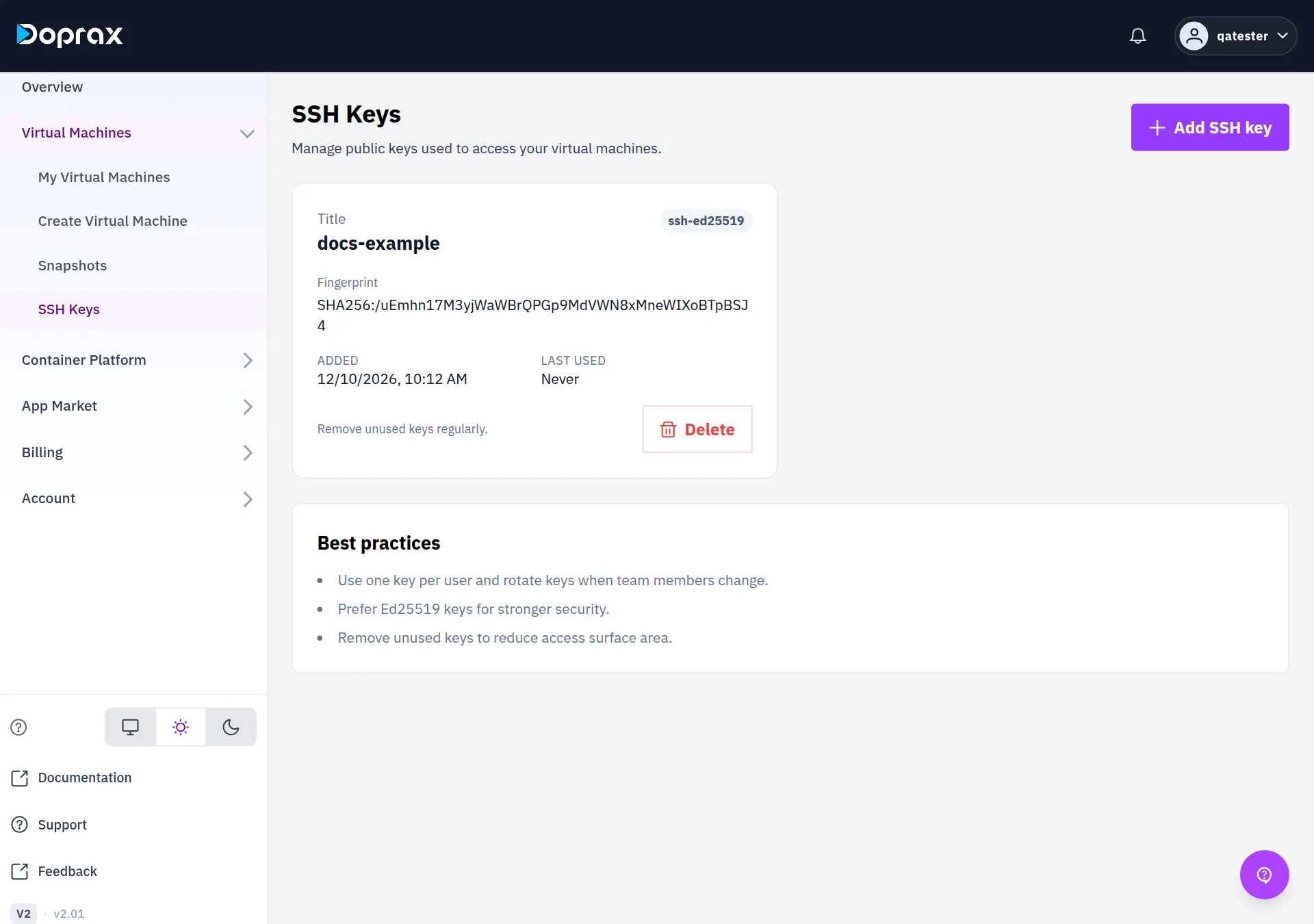
In the dashboard, open Virtual Machines, then SSH Keys.
-
Select Add SSH key.
-
Type a Title that tells you which computer the key belongs to, and paste the line into Public key.
-
Select Add SSH key.
What is accepted:
- One line only. A private key is refused: never paste one anywhere.
- These key types:
ssh-ed25519,ssh-rsa,ecdsa-sha2-nistp256,ecdsa-sha2-nistp384,ecdsa-sha2-nistp521. - Each key once. A key that is already registered cannot be added a second time.
Each key is shown with its title, type and fingerprint. Last used is the last time a VM was created with the key, not the last time someone logged in with it.
Create a VM with a key
Section titled “Create a VM with a key”-
Open Virtual Machines, then Create Virtual Machine, and choose provider, location, size and image as usual. See Create your first virtual machine.
-
Under Choose an access method, select SSH Key (recommended).
-
Under Your keys, select the key. If the list is empty, Add key opens the same dialog as on the SSH Keys page.
-
Create the VM.
You select one key per VM. The new VM has no root password: its Access tab says so and names the key under SSH key in use. Log in with:
ssh root@YOUR_VM_IPMore in Connect to a VM.
Keys and VMs that already exist
Section titled “Keys and VMs that already exist”A key is put on a VM only when the VM is created.
- Adding a key to your account does not add it to your existing VMs. To let another key log
in to a VM that is already running, add its public line to the file
/root/.ssh/authorized_keyson that VM. - A VM created with a password stays a password VM in the dashboard. You can still add a key to it yourself in the same file.
Delete a key
Section titled “Delete a key”-
Open Virtual Machines, then SSH Keys.
-
Select Delete on the key, and Delete again in the dialog.
The key is removed from your account and can no longer be chosen for a new VM. The Access tab of VMs that were created with it no longer names it.
Checked against the product on 12 October 2026.