

Copy your files off a VM that does not boot
A virtual machine that no longer boots, or that you cannot log in to, usually still has your files on its disk. This guide shows how to copy them to a safe place. What you can do depends on the provider of the VM.
| Provider | What you can do |
|---|---|
| Hetzner, OVH | Start the VM in rescue mode, open its disk and copy the files |
| ProVM, Vultr, DigitalOcean, Google Cloud, Gcore, Scaleway | There is no rescue mode. Use the Terminal if only your login is broken, or a snapshot from before the problem |
If you have not done so yet, go through My VM is unreachable first. A VM that is Stopped or Frozen is not broken.
Hetzner and OVH: copy the files through rescue mode
Section titled “Hetzner and OVH: copy the files through rescue mode”Rescue mode starts the VM from a small recovery system. Your own disk is not started and is not changed. You log in to the recovery system, open your disk as a folder, and copy what you need.
Decide first where the files should go: your own computer, or another server.
1. Start rescue mode
Section titled “1. Start rescue mode”-
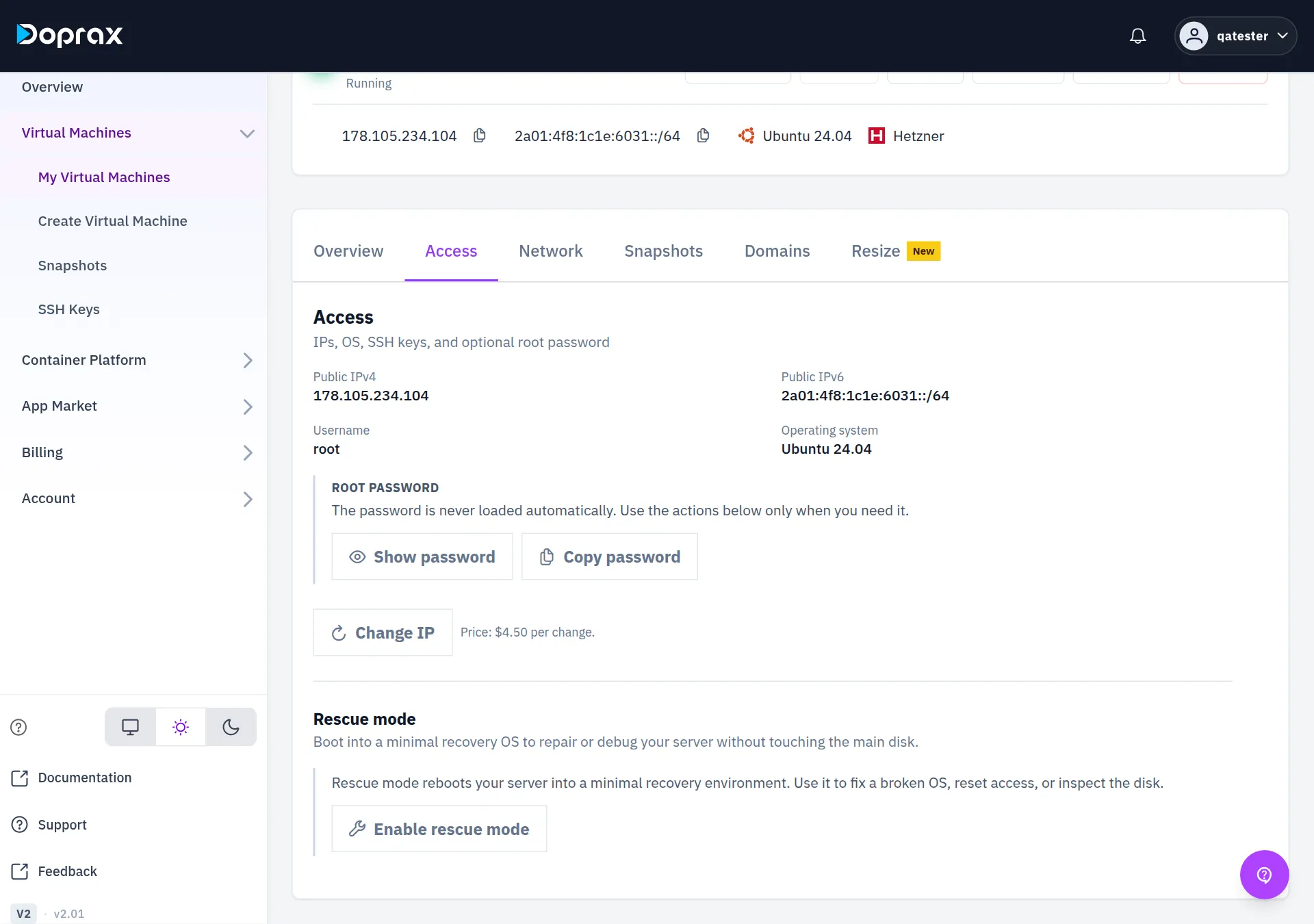
In the dashboard, open the VM and select the Access tab.
-
At the bottom of the tab, under Rescue mode, select Enable rescue mode.
-
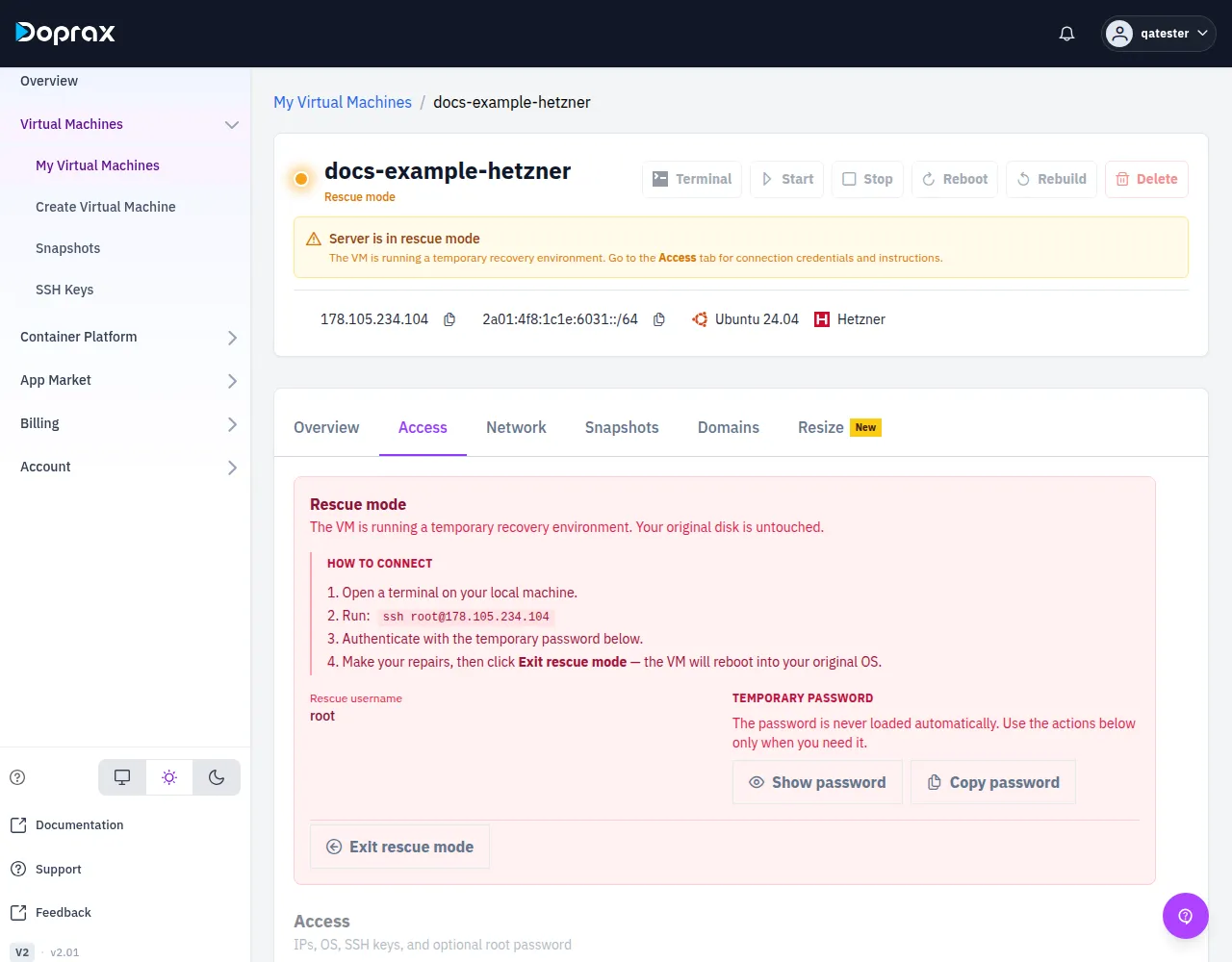
Wait. The VM reboots into the recovery system by itself; you do not have to reboot it. The status under the VM’s name changes to Rescue mode, and the page shows the notice “Server is in rescue mode”.
While the VM is in rescue mode, Terminal and the other buttons are switched off. The only action is Exit rescue mode.
2. Log in to the recovery system
Section titled “2. Log in to the recovery system”The Access tab now shows a Rescue mode box at the top, with How to connect.
-
Read the command under How to connect. It has the form
ssh root@followed by the VM’s IP address. The user is the one shown as Rescue username. -
Look at how to log in. The box shows one of two things:
- Temporary password: select Show password or Copy password.
- “Authenticate with your SSH key”, with the fingerprint of the key: use the SSH key the VM was created with.
-
Open a terminal on your own computer and run the command. Replace the address with yours.
Terminal window
If your SSH client refuses to connect with a warning that the host key has changed, that is expected: the recovery system is not your own system, so it identifies itself with another key. Remove the old entry and connect again:
ssh-keygen -R 203.0.113.103. Open your disk
Section titled “3. Open your disk”In the recovery system, your own disk is not opened automatically.
-
List the disks and their partitions:
Terminal window lsblkFind the partition of your own system. It is normally the largest partition, and no mount point is shown next to it. Its name looks like
sda1,sdb1orvda1. -
Open it as the folder
/mnt/system. Replacesda1with the name you found. The optionroopens the disk read-only, so nothing on it can be changed by mistake.Terminal window mkdir -p /mnt/systemmount -o ro /dev/sda1 /mnt/system -
Check that your files are there:
Terminal window ls /mnt/system
Your files are now under /mnt/system. Common places:
| What | Where |
|---|---|
| Home folders of users | /mnt/system/home and /mnt/system/root |
| Websites | /mnt/system/var/www |
| Configuration | /mnt/system/etc |
| Docker volumes | /mnt/system/var/lib/docker/volumes |
| MySQL or MariaDB data | /mnt/system/var/lib/mysql |
| PostgreSQL data | /mnt/system/var/lib/postgresql |
The data folder of a database is only usable with the same version of that database. Copy the whole folder, not single files in it.
4. Copy the files
Section titled “4. Copy the files”To your own computer. Run this on your computer, in a second terminal, not in the recovery system. It asks for the same password or uses the same key as before.
With rsync a copy that was interrupted can be continued by running the same command again:
To another server. Run this in the recovery system:
5. Check the copy before you leave
Section titled “5. Check the copy before you leave”Compare the size of a folder on both sides, and open a few of the copied files.
du -sh /mnt/system/var/www # in the recovery systemdu -sh ./backup-www # on your computer6. Leave rescue mode
Section titled “6. Leave rescue mode”-
In the recovery system, close the disk and log out:
Terminal window umount /mnt/systemexit -
On the Access tab, select Exit rescue mode. The VM reboots into its own system. You do not have to reboot it yourself.
Leaving rescue mode does not repair anything: if the system did not boot before, it will not boot now. With your files safe, you can Rebuild the VM or delete it and create a new one.
You can enter rescue mode again whenever you need it.
ProVM and the other providers
Section titled “ProVM and the other providers”On ProVM, Vultr, DigitalOcean, Google Cloud, Gcore and Scaleway there is no rescue mode. The dashboard also has no way to attach the disk of one VM to another VM, or to download a disk. That leaves two ways.
The VM runs, but you cannot log in: use the Terminal
Section titled “The VM runs, but you cannot log in: use the Terminal”Select Terminal at the top of the VM’s page. It opens a shell on the VM in your browser, and it logs in with a key that Doprax keeps for the VM, not with your key or password. So it can work when your own login does not.
From that shell you can copy your files to another server:
Or you can repair your login: add your public key to ~/.ssh/authorized_keys, then connect
from your computer as usual.
What the Terminal needs in order to connect is listed in My VM is unreachable. It cannot help when the VM does not boot.
The VM does not boot: use a snapshot from before the problem
Section titled “The VM does not boot: use a snapshot from before the problem”If you took a snapshot while the VM still worked, make a new VM from it.
-
Open the VM and select the Snapshots tab. All your snapshots are also under Virtual Machines, Snapshots in the menu.
-
On the snapshot, select Restore (new VM), then Continue. The create page opens with the snapshot selected.
-
Choose a plan and create the VM. It is created at the same provider as the snapshot, with a new IP address, and it is charged like any other VM.
-
Log in to the new VM and copy your files.
A snapshot only helps if it was taken before the problem. A snapshot of a VM that does not boot contains the same broken system, and a VM made from it does not boot either.
If you have neither
Section titled “If you have neither”Do not rebuild or delete the VM. Contact us: open Support in the dashboard menu and select Start live chat, or write to [email protected]. Say which VM it is and which files you need.
So that you do not need this guide again
Section titled “So that you do not need this guide again”- Take a snapshot before a risky change, such as a system upgrade or a change to the firewall or to SSH. A snapshot costs $0.20 when it is created and $0.20 per GB per month while you keep it.
- Keep a copy of data that matters outside the VM.
Checked against the product on 12 October 2026.