

Create your first virtual machine
A virtual machine (VM) is a server of your own: you get root access and an IP address, and you pay for it by the hour from your credit. A small one is running about a minute after you ask for it.
Before you start
Section titled “Before you start”- A Doprax account. Sign up if you do not have one.
- Credit on the account. Doprax is prepaid: add credit under Billing in the dashboard. A plan of $30 a month or more also needs 10% of its monthly price available before it can be created.
Create the VM
Section titled “Create the VM”-
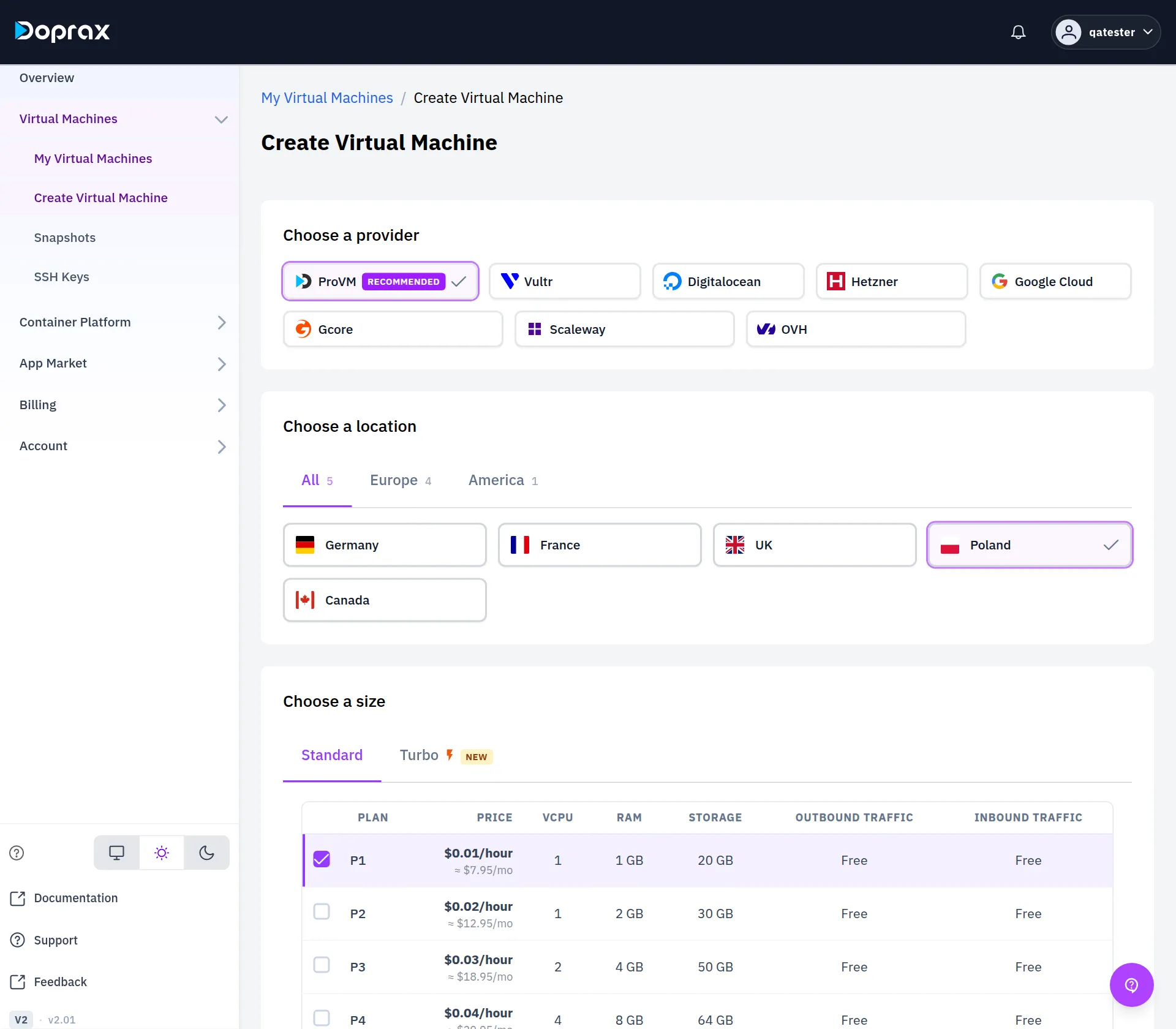
In the dashboard, open Virtual Machines, then Create Virtual Machine.
-
Choose a provider. ProVM is Doprax’s own hardware and is selected for you. The other providers (Hetzner, OVH, DigitalOcean and more) are run through the same account and the same credit.
-
Choose a location. Pick the country closest to the people who will use the server.
-
Choose a size. Each plan shows its price per hour and the roughly equal price per month. The smallest ProVM plan, P1, is enough to try things out. See Plans and prices.
-
Choose an image source. Pick an operating system and its version, or start from one of your own snapshots.
-
Choose an access method.
- Password: a strong password is generated for you. You read it in the dashboard after the VM is created.
- SSH key: you log in with your own key and no password. This is the safer choice. Add your public key first under Virtual Machines, SSH Keys.
-
Enter a name, or keep the suggested one, and select Create Virtual Machine. The bar at the bottom shows the hourly price and a summary of your choices before you confirm.
Log in
Section titled “Log in”The new VM is listed under My Virtual Machines. When its status is Running, open it: the IP address is shown at the top of its page.
-
With a password: open the Access tab to read the username and password, then connect:
Terminal window ssh root@YOUR_VM_IP -
With an SSH key: the same command, and no password is asked.
-
Without any SSH client: select Terminal on the VM’s page to open a terminal in the browser.
- When your credit runs low: the warnings you get and what happens at zero.
- Create a VM with the API: the same thing from a script.
Checked against the product on 12 October 2026.