

Account settings
The Account menu of the dashboard has four items.
| Menu item | What you do there |
|---|---|
| Profile & Settings | Edit your public profile and choose which emails you get |
| Security | Change your password, see your quotas and ask for more |
| API Keys | Create or replace your API key |
| Features & Early Access | See new features and ask for early access |
Profile & Settings
Section titled “Profile & Settings”The Settings screen has three tabs: Profile, Preferences and Account & Security.
Profile
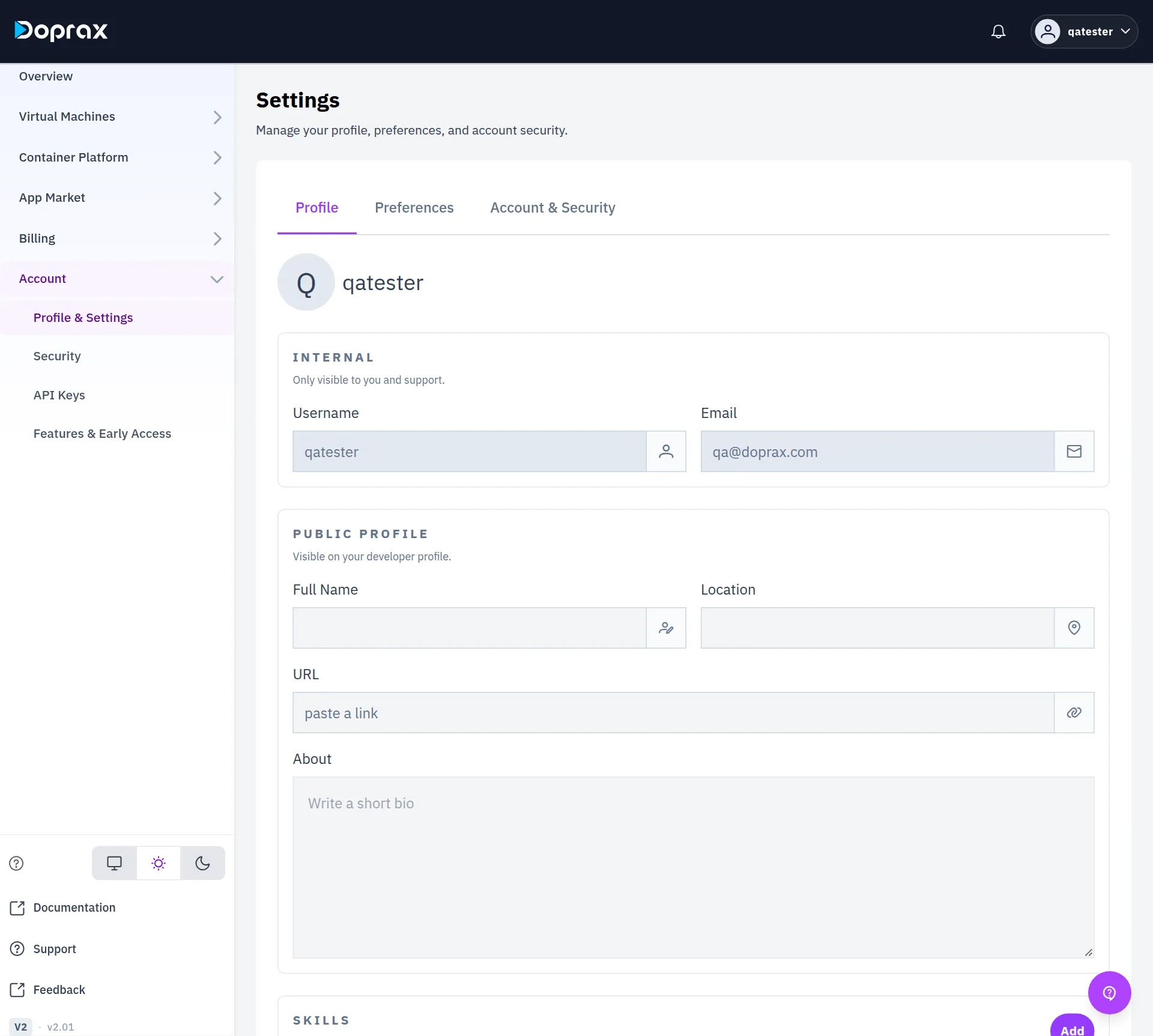
Section titled “Profile”| Part | Fields | Who sees it |
|---|---|---|
| INTERNAL | Username, Email | Only you and support. Neither can be changed on this screen |
| PUBLIC PROFILE | Full Name, Location, URL, About | Anyone who opens your developer profile |
| SKILLS | A list you build with Add | Anyone who opens your developer profile |
| LINKS | GitHub, LinkedIn, X, Website | Anyone who opens your developer profile |
Select Save Changes when you are done.
Your developer profile is the page under App Market > Publisher Profile. See Your public profile.
Preferences
Section titled “Preferences”Preferences has one switch for each kind of email:
- Marketing & Promotions
- Newsletter & Content
- Surveys & Research
- Product Updates & Announcements
- Educational & Tips
- Account Notifications
Account & Security
Section titled “Account & Security”This tab holds three shortcuts: Open account settings opens the Security screen, Manage API keys opens API Keys, and Open affiliates opens the affiliate programme.
Security
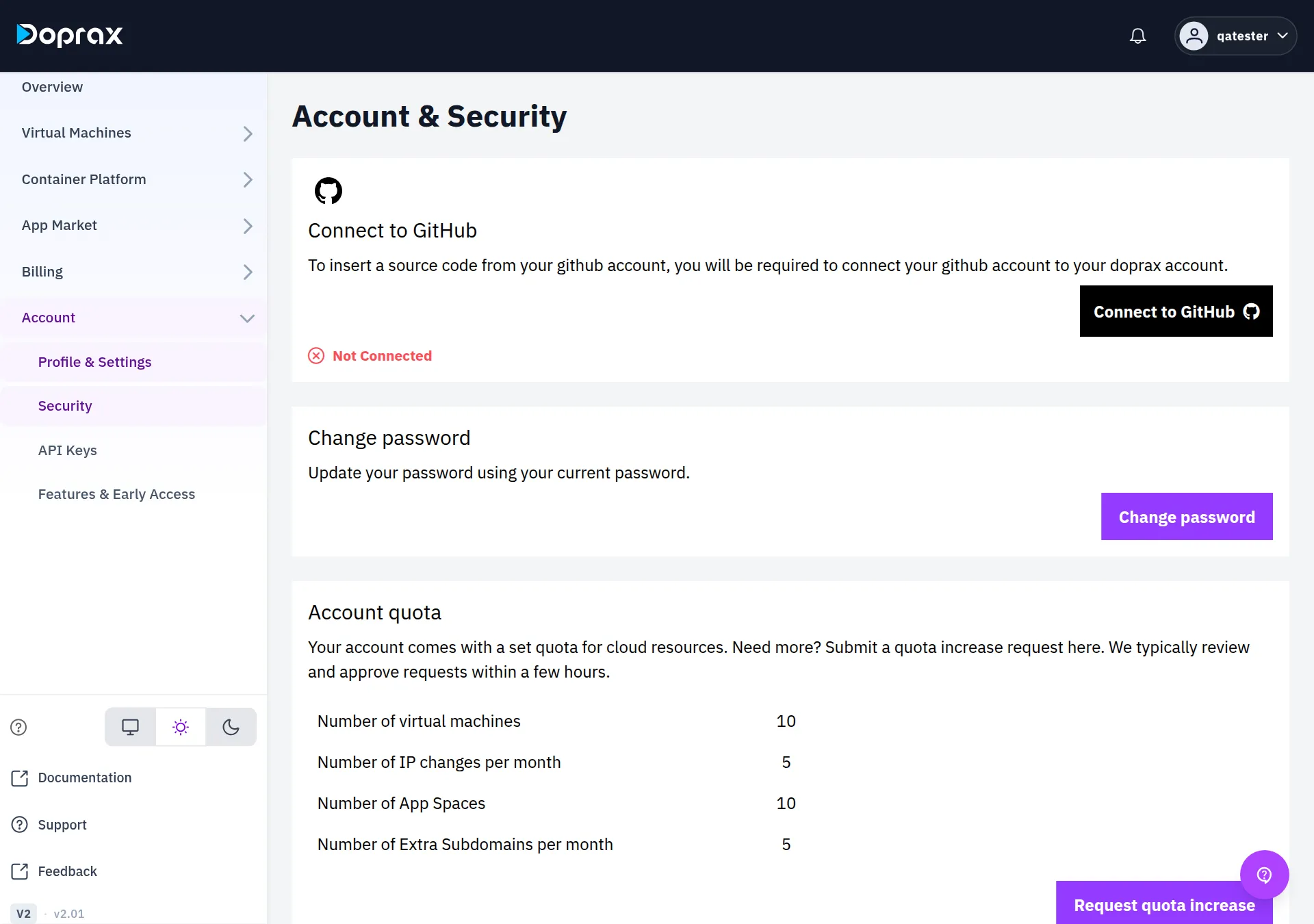
Section titled “Security”Change your password
Section titled “Change your password”-
Open Account > Security.
-
Select Change password.
-
Fill in Current password, New password and Confirm new password.
-
Select Update password.
The new password needs at least 8 characters, with a letter and a number. It must be different from the current one.
If you do not know your current password, sign out and use Forgot Password? on the sign-in page. We email you a link to set a new one. This is also how you set a password if you signed up with Google and never chose one.
Account quota
Section titled “Account quota”The Account quota table shows how much your account may have. A new account starts with:
| Quota | Start value |
|---|---|
| Number of virtual machines | 10 |
| Number of IP changes per month | 5 |
| Number of App Spaces | 10 |
| Number of Extra Subdomains per month | 5 |
To ask for more:
-
Select Request quota increase.
-
Type the new number for each quota you want raised. It must be higher than the present one.
-
Select Submit request.
Our team reviews each request. The screen says requests are typically reviewed and approved within a few hours.
Connect to GitHub
Section titled “Connect to GitHub”Connect to GitHub lets Doprax read the repositories of your GitHub account, and it is used only by the older app platform to import source code. App Space does not use it: it builds from public repositories without any connection.
API Keys
Section titled “API Keys”An account has one API key. Account > API Keys shows whether you have one and when it was last used.
- With no key yet, select Generate API Key.
- Regenerate makes a new key. The old key stops working at once.
- The full key is shown once, right after it is made. Copy it then.
- Send the key in the
X-API-Keyheader of every request.
How to use the key is in the API documentation.
Features & Early Access
Section titled “Features & Early Access”This screen lists new features. Each one carries a label:
| Label | Meaning |
|---|---|
| Available | Open to every account |
| Early Access | Open only to accounts that were given access. Select Request Access to ask |
| Closed | Not taking requests |
After you ask, the feature shows Pending Review until our team decides. It then shows Access Granted or Not Approved.
Checked against the product on 12 October 2026.