

Install an app from the App Market on a virtual machine
You choose an app and one of your virtual machines. Doprax connects to the VM over SSH, installs the app, and shows you the log while it runs. At the end the dashboard shows the app’s address and passwords, when the app declares them.
Before you start
Section titled “Before you start”- You need a running VM. If you have none, the install bar shows “You have no active VMs yet” and a Create a VM button. See Create your first VM.
- Doprax must be able to log in to the VM. It connects as
root, to the VM’s public IPv4 address, on port 22, with a key that Doprax put on the VM when the VM was created. If you removed that key, turned offrootlogin, or moved SSH to another port, the install fails. - Installing costs nothing. You pay for the VM only.
- An install changes the VM and the dashboard cannot undo it. If the VM holds something you need, take a snapshot first.
Find an app
Section titled “Find an app”- In the dashboard menu, select App Market, then Blueprint Marketplace.
- Select Virtual Machine to see only the apps that install on a VM.
- Type a name in the search box. The list changes when you stop typing. The search looks at the name and the description of each app.
- Or select one or more tags under CATEGORIES. You get the apps that have at least one of the tags you selected. +N more categories shows all tags.
- Clear filters brings the full list back. If nothing matches, the page says “No apps found”.
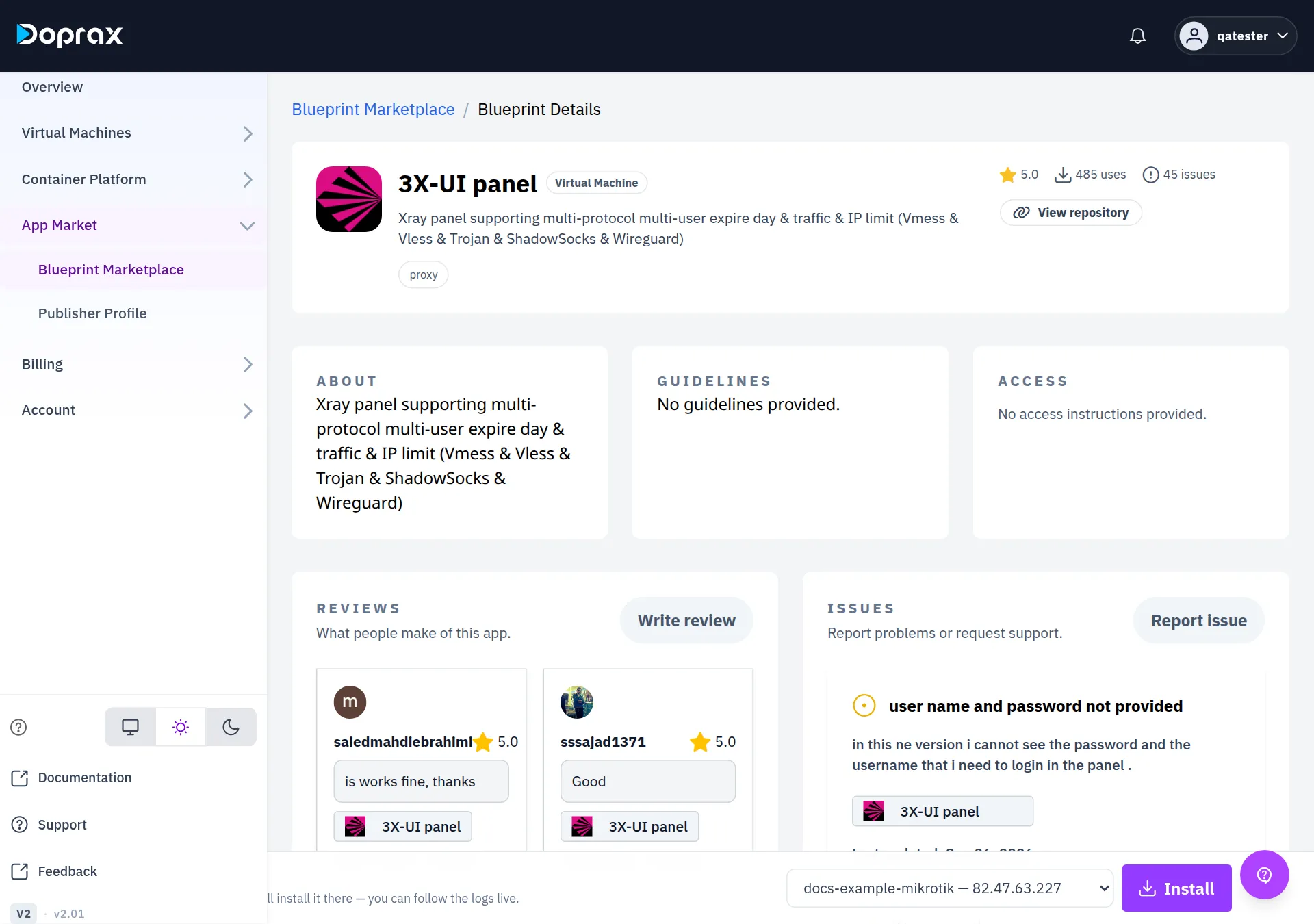
Read the app’s page
Section titled “Read the app’s page”Select the card, or View details. Before you install, look at:
- ABOUT and GUIDELINES: what the app is and what the publisher says about using it.
- ACCESS: how you will reach the app after the install.
- ISSUES: what other customers reported.
- The publisher’s name on the card, and View repository. An app from another customer is
installed by a playbook that the publisher wrote, and it runs as
rooton your VM.
Install
Section titled “Install”- Go to the bar at the bottom of the app’s page. It says “Choose a Virtual Machine and we’ll install it there — you can follow the logs live.”
- Choose the VM in the list. Each VM is shown with its name and IPv4 address.
- Select Install. There is no confirmation: the install starts at once.
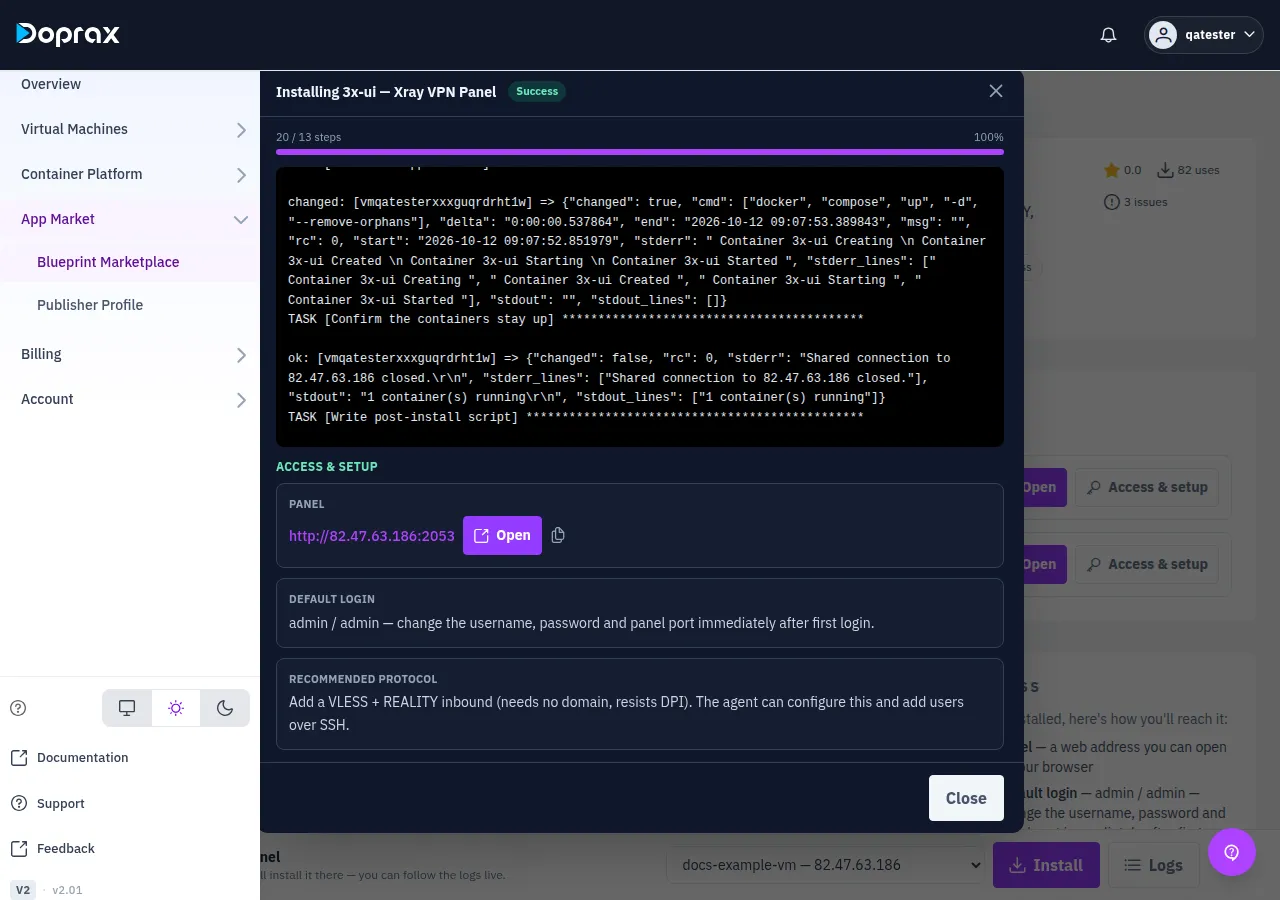
- A window named “Installing”, with the app’s name, opens. It shows the status Running, a count of steps such as “3 / 14 steps”, and the log as it is written.
- Wait until the status is Success.
While the install runs:
- Close hides the window. The install goes on. Logs in the install bar opens the window again, as long as you stay on the page.
- Cancel install stops the install. Steps that already ran on the VM are not undone.
- An install that is still running after one hour is stopped by the platform.
Find the address and the passwords
Section titled “Find the address and the passwords”When the status is Success, the window shows ACCESS & SETUP. It can take a few seconds to appear (“Fetching access details…”). It lists what the app’s publisher declared:
| Item | How it is shown |
|---|---|
| A web address | A link, an Open button and a copy button |
| A password or key | Hidden behind dots. The eye shows it, the copy button copies it |
| A note | Plain text, for example the default login or the first thing to do |
You can read the same details later. Open the app’s page again: YOUR INSTALLATIONS lists each VM you installed the app on, with the status of the install. Open goes to the app’s web address. Access & setup shows the list above.
Where your installed apps are listed
Section titled “Where your installed apps are listed”On the app’s page, under YOUR INSTALLATIONS, as described above.
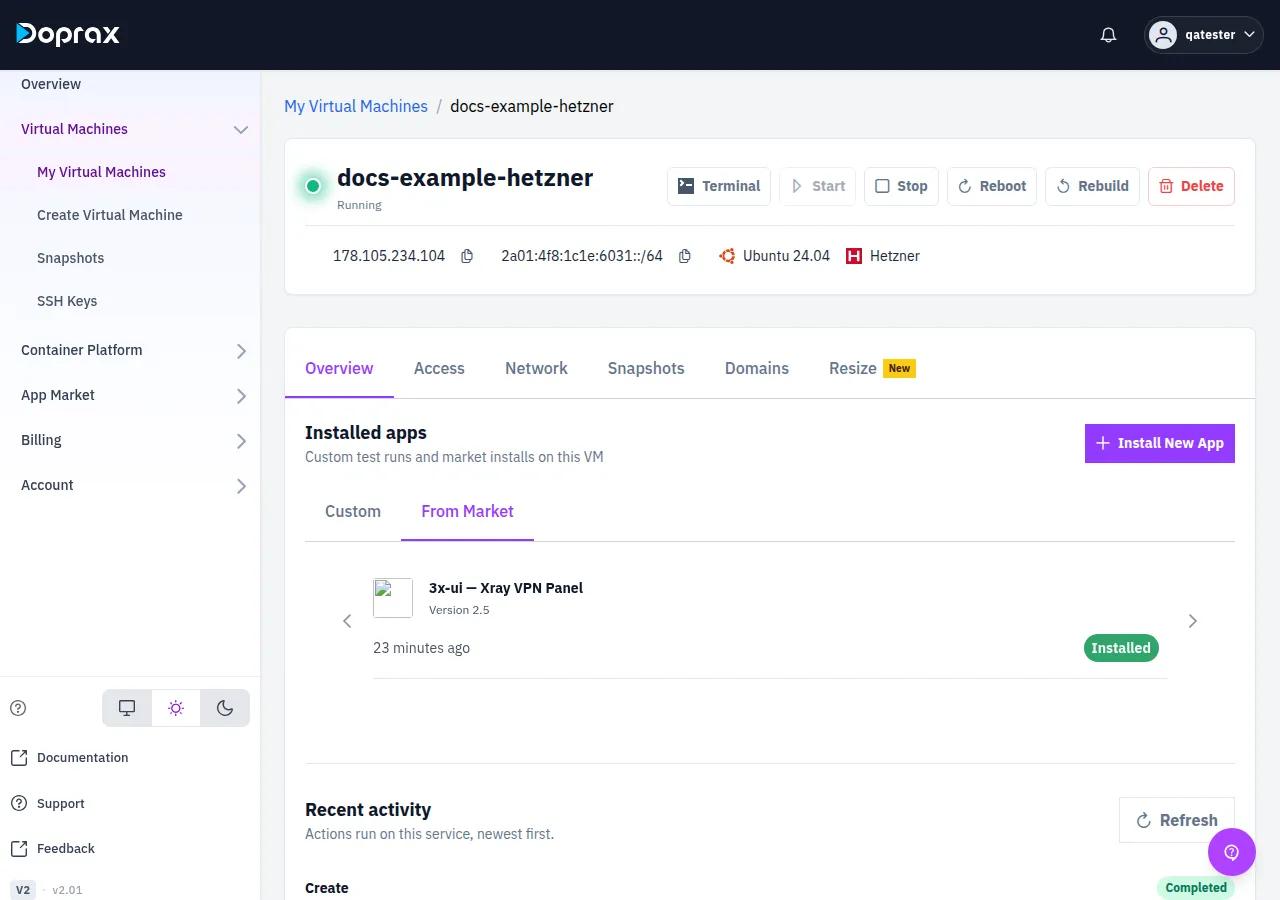
On the VM’s page, on the Overview tab, under Installed apps. It has two tabs and opens on Custom:
| Tab | What it lists |
|---|---|
| From Market | The apps you installed on this VM from the App Market: name, version, when the last install ran, and its status |
| Custom | Test installs of apps that you are publishing yourself |
Selecting an app under From Market opens the screen of that install, with Installation status and Installation Logs.
The Install New App button there opens an older list of the same apps, not Blueprint Marketplace. To follow this page, use App Market > Blueprint Marketplace in the menu.
What the install does on your VM
Section titled “What the install does on your VM”Doprax logs in to the VM over SSH as root and runs an Ansible playbook. Which playbook depends
on the app.
An app that Doprax keeps as a Docker Compose definition is installed by one playbook that Doprax maintains. It does this:
- It installs Docker, if the
dockercommand is missing. It uses Docker’s own install script fromget.docker.com, after waiting for the VM’s first-boot setup and package updates to end. - It creates the directory
/opt/doprax/apps/<app>/and writes two files into it:docker-compose.yml(the app) and.env(its settings, with the generated passwords). - It pulls the images and starts the app with
docker compose up -d. - It watches the containers for about two minutes. If one stops or keeps restarting, the install fails and the log shows what that container printed.
- It runs the app’s own post-install script, if the app has one.
An app that another customer published from a repository is installed by the playbook in that repository. Doprax downloads the repository at the commit that was recorded when the app version was created, and runs the playbook against your VM. What happens on the VM is decided by that playbook.
What is checked before an install starts
Section titled “What is checked before an install starts”| Check | What you see if it is not met |
|---|---|
| The VM is yours, has finished being created, and is not deleted | The VM is not in the list, or “Target VM not found” |
| The app is for virtual machines and has a published version | “This app has no published version to install.” or “Market app version not found” |
| The app is not your own | “Market app version not found”. You cannot install your own app from the install bar |
| This version of the app is not already installed with success on this VM | “Market app already installed successfully on this VM” |
| The VM answers over SSH. Doprax tries 12 times, over a few minutes | “machine-unreachable: the machine never became usable over SSH” |
Two things are not checked: the operating system of the VM, and its memory and disk size. An app can start to install on a VM it cannot run on, and fail part of the way.
If the install fails
Section titled “If the install fails”The status turns to Failed and a red box shows the reason: the name of the step that failed and what it printed. The full log is above it.
| Reason | What to do |
|---|---|
| “machine-unreachable: …” | The VM did not answer over SSH. Check that it is running and that root can log in on port 22 with the key Doprax placed. Then select Install again |
| “The application started but did not stay up:” | A container of the app stopped or kept restarting. The lines below the message are that container’s last output |
| “… is required” | The app needs a value that the dashboard has no field for. It cannot be installed from the dashboard. Report it as an issue on the app’s page |
| Another step failed | Read the log. If you can fix the cause on the VM, do so, then select Install again |
Good to know:
- Install after a failure runs the whole install again on the same VM.
- Nothing is rolled back. What the earlier steps put on the VM stays there.
- To start from a clean VM, rebuild it. A rebuild erases the VM’s disk.
- If the app itself is at fault, report an issue on its page, with the lines of the log that show the error.
Remove an app
Section titled “Remove an app”The dashboard has no uninstall. You remove an app on the VM yourself.
An app that was installed from a Docker Compose definition lives in /opt/doprax/apps/<app>/.
Log in to the VM and look for it:
ls /opt/doprax/apps/To stop the app and remove its containers, run this in the app’s directory:
cd /opt/doprax/apps/<app>docker compose downFor an app installed by a publisher’s playbook, Doprax keeps no record of what the playbook put on the VM. Read the repository to see what it installed.
Two things to know after you removed an app by hand:
- The dashboard still lists it as installed. The record of the install stays.
- You cannot install the same version on that VM again. The dashboard answers “Market app already installed successfully on this VM”.
A rebuild of the VM removes the record on ProVM, Hetzner, OVH, Vultr, DigitalOcean and Google Cloud VMs. Then the app can be installed again. On a Gcore or Scaleway VM a rebuild does not remove the record.
Checked against the product on 12 October 2026.