

My VM is unreachable: what to check
Your virtual machine does not answer: SSH fails, the website on it is down, or nothing loads. Go through these checks in order. Most cases end at the first or second one.
1. Look at the status on the VM’s page
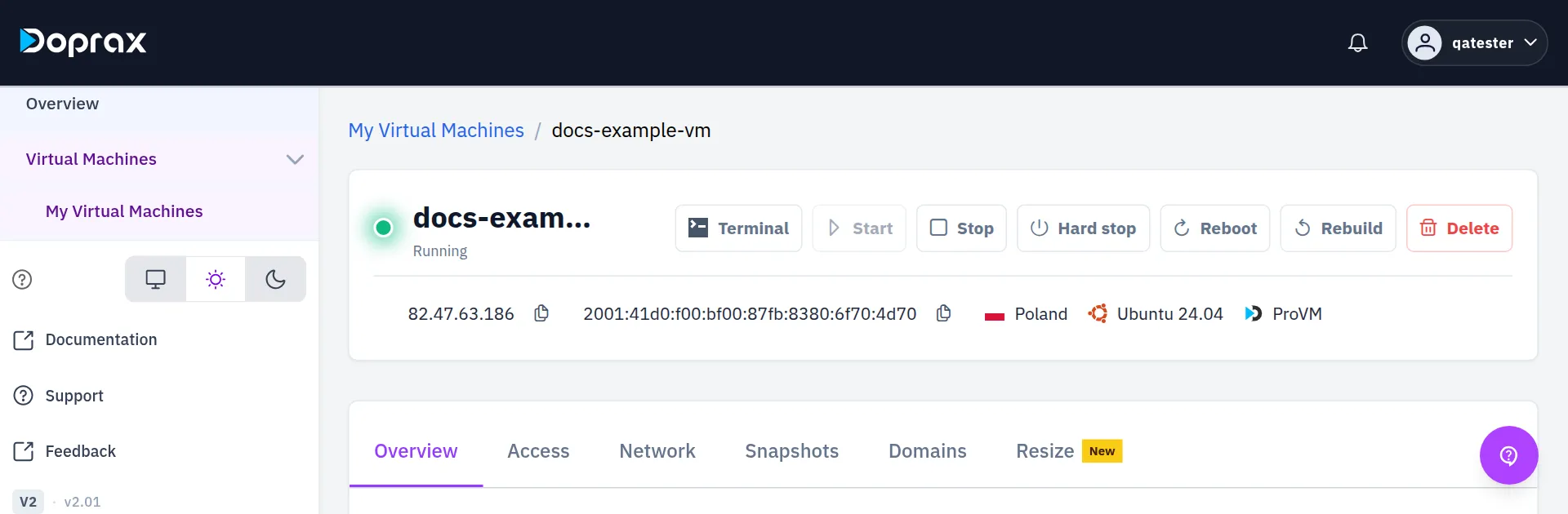
Section titled “1. Look at the status on the VM’s page”In the dashboard, open Virtual Machines, then My Virtual Machines, and select the VM. The status is the word under the VM’s name.
| Status | What it means | What to do |
|---|---|---|
| Running | The VM is switched on | The problem is inside the VM or on the network. Continue with check 2 |
| Stopped | The VM is switched off | Select Start |
| Starting, Stopping, Rebooting, Provisioning | An action is in progress. Most buttons are switched off until it ends | Wait. The Overview tab lists the actions under Recent activity |
| Frozen | Your credit reached zero and the VM was shut down | Add credit. See check 4 |
| Rescue mode | The VM runs a recovery system, not your own system | Open the Access tab and select Exit rescue mode |
| Error or Failed | Something went wrong at the provider. The page shows a red notice, “Provisioning failed”, with the reason | Try Reboot. If the VM never worked, delete it and create it again |
Running says that the VM is switched on. It does not say that the operating system inside it works.
If Start is switched off on a stopped VM, hold the pointer over it. “Account balance is too low to start this VM.” means you have to add credit first.
2. Try the Terminal button
Section titled “2. Try the Terminal button”Select Terminal at the top of the VM’s page. A shell on the VM opens in a new browser tab.
Terminal is an SSH session from Doprax to your VM, shown in the browser. It is not a screen of the machine: it does not show boot messages, and it cannot work when the SSH server in the VM is not running. For it to connect, all of this must be true:
- The VM is Running and is not in rescue mode.
- The SSH server in the VM listens on port 22, on the VM’s public IPv4 address.
- The VM’s own firewall lets connections to port 22 in.
- The user shown on the Access tab, normally
root, can log in with an SSH key, and the key that Doprax put on the VM when it was created is still in that user’sauthorized_keysfile.
If Terminal opens, the VM is alive and its SSH server works. Then the problem is between your computer and the VM, or in your own login:
-
Your SSH key is not on the VM, or you use the wrong password. The Access tab shows the username, the SSH key in use, and for a VM created with a password the Show password button. You can add your public key to
~/.ssh/authorized_keysfrom the Terminal. -
Your own network blocks the connection. Try from another network.
-
Only one service is down, not the VM. In the Terminal, see whether it listens:
Terminal window sudo ss -tlnpHow to read the answer is on Ports and protocols.
If Terminal shows “Could not establish terminal session”, the SSH server in the VM did not answer or refused the key. Continue with check 3.
To see where your own SSH connection stops, run it with -v from your computer:
| Last message | What it means |
|---|---|
Connection timed out |
Nothing answers on port 22: the VM is hanging, a firewall drops the connection, or the provider’s port rule blocks it (check 5) |
Connection refused |
The VM answers, but no SSH server listens on port 22 |
Permission denied |
The VM and its SSH server work. Your key or password is not accepted |
3. Reboot the VM
Section titled “3. Reboot the VM”Select Reboot and wait until the status is Running again. Then try the Terminal and your own connection once more.
If the VM does not react to Reboot or Stop:
- On ProVM, select Hard stop. This is a forced power-off, like pulling the plug: what was only in memory is lost. Tick the box to confirm, wait for Stopped, then select Start.
- On the other providers there is no Hard stop. Contact us (see the end of this page).
4. Check your credit
Section titled “4. Check your credit”A VM with the status Frozen was shut down because the credit of your account reached zero. It is not broken, and its data is still there.
- Open Billing, then Billing overview, and look at Available balance.
- Add credit. When your available balance is above $2, the frozen VMs are started again automatically, usually within 15 minutes.
A frozen VM that stays without credit is deleted by our team after a short time. See When your credit runs low.
5. Check the port rules of the provider
Section titled “5. Check the port rules of the provider”The provider is shown at the top of the VM’s page, next to the operating system.
- Hetzner: only TCP ports 80, 443 and 19000 to 19100 are reachable from the internet. A service on another port, or one that uses UDP, cannot be reached, whatever you set inside the VM. Move the service to one of these ports.
- ProVM and OVH: all ports are open. If a port does not answer, look at the firewall inside the VM.
The steps to test one port are on Ports and protocols.
6. Use rescue mode, where there is one
Section titled “6. Use rescue mode, where there is one”Rescue mode starts the VM from a small recovery system, so that you can log in and repair your own system or copy your files, even when it does not boot.
- Hetzner and OVH: open the Access tab and select Enable rescue mode. See Rescue mode.
- All other providers, ProVM included: there is no rescue mode. A request for it is refused with “Rescue mode is not supported for this provider.”
To get your files off a VM that does not boot, follow Copy your files off a VM that does not boot.
If nothing helped
Section titled “If nothing helped”- You have a snapshot from before the problem: create a new VM from it. On the Snapshots tab, select Restore (new VM) on the snapshot. The new VM is at the same provider and gets its own IP address. See Snapshots.
- You do not need the data on the VM: select Rebuild. It puts a fresh operating system on the same VM and destroys what is on the disk. Rebuild does not exist on Gcore and Scaleway. See Rebuild.
- Ask us. Open Support in the dashboard menu and select Start live chat, or write to [email protected]. Say which VM it is and what you have already checked.
Checked against the product on 12 October 2026.