

How billing works
Doprax is prepaid. You add credit, and each service you have takes its price from that credit, hour by hour. There is no bill at the end of the month and no overdraft.
What you are charged for
Section titled “What you are charged for”- A plan has a monthly price and is charged by the hour. One hour costs the monthly price divided by 720.
- A service is charged for as long as it exists, from the moment you create it until you delete it.
- A stopped service costs the same as a running one. Its disk and its address stay reserved for you. To stop paying, delete the service.
- A frozen service is not charged. Services are frozen when your credit runs out. See When your credit runs low.
Prices are on the create pages of the dashboard and in the docs: virtual machine plans, what a virtual machine costs and App Space.
Credit you need to create a service
Section titled “Credit you need to create a service”- You need some available balance before you can create a service. If you have too little, the dashboard tells you the amount you need.
- For a plan that costs $30 a month or more, you need at least 10% of its monthly price in available balance.
The kinds of charges
Section titled “The kinds of charges”Every charge in your ledger carries a charge code. These are the codes that have a price today.
| Charge code | Name in the dashboard | What it is | Has a price on |
|---|---|---|---|
base_plan |
Base plan | The plan of a VM or an App Space, by the hour | Every service |
snapshot_create |
Snapshot creation | Charged once, after a snapshot has been created | ProVM |
snapshot_storage |
Snapshot storage | Per GB stored, by the hour, until you delete the snapshot | ProVM |
extra_ip_setup |
none, the ledger shows the code | Charged once for each additional IPv4 address you add | ProVM |
extra_ip |
none, the ledger shows the code | Each additional IPv4 address, by the hour, while it is attached | ProVM |
ip_change |
IP change | Charged once each time you change a VM’s public IP address | Hetzner only |
egress_overage |
Traffic overage | Outbound traffic beyond the plan’s monthly allowance, worked out once a day | DigitalOcean, Google Cloud, Hetzner, Vultr |
The dashboard shows the price of an extra before you confirm it:
- The Create snapshot dialog shows $0.20 for creating a snapshot and $0.20 per GB per month for storing it. See Snapshots.
- The Add an additional IP dialog shows $1 one-time setup and $1 per month, billed hourly. See Additional IPs.
- For the IP change fee, see Change the IP of a VM.
- For traffic allowances, see Traffic usage.
Your balance
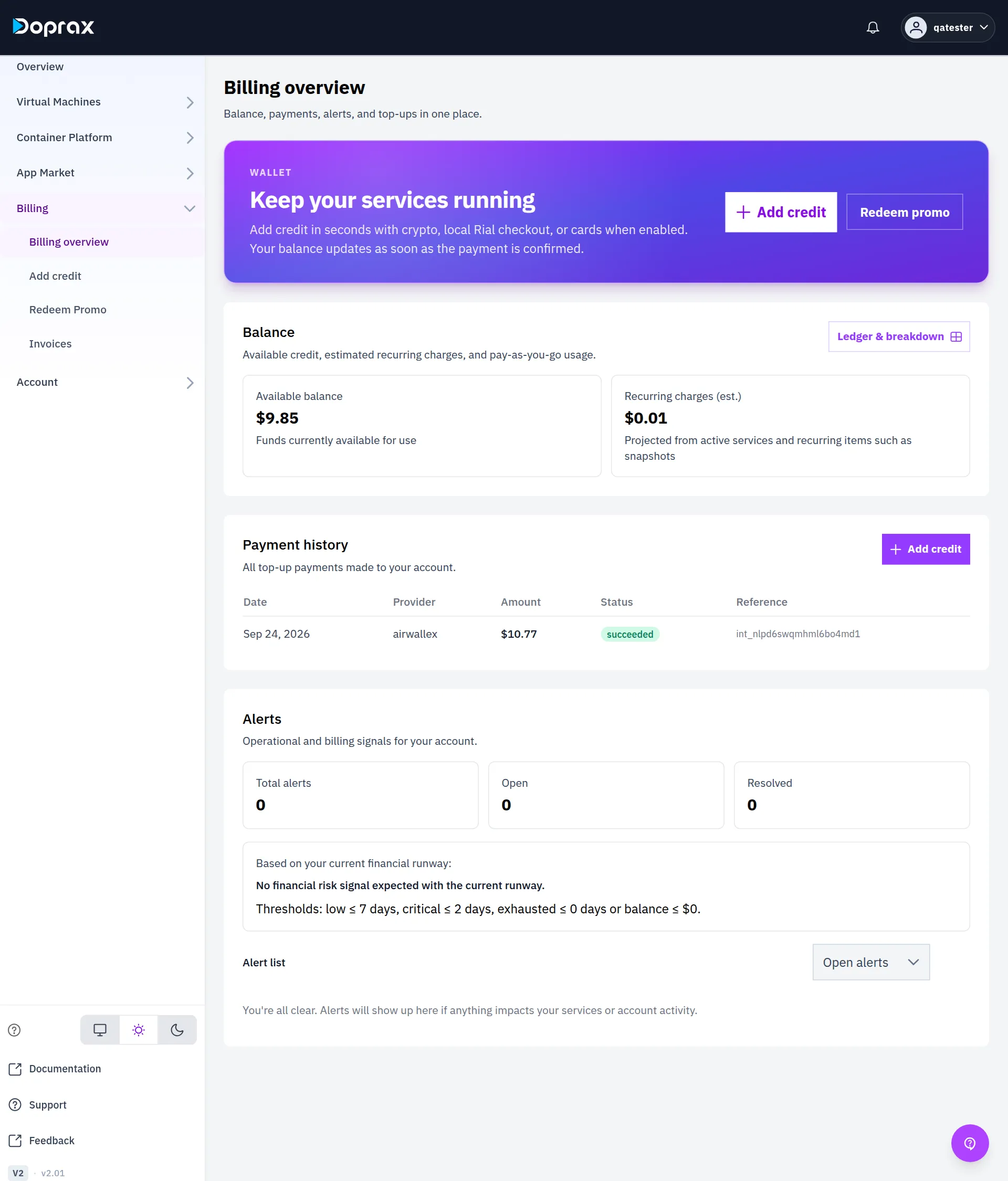
Section titled “Your balance”Open Billing > Billing overview. The Balance section shows two numbers.
| Number | What it means |
|---|---|
| Available balance | Your credit, minus what your services have used since they were last charged. This is the number that decides the warnings and the stop at zero |
| Recurring charges (est.) | The plan and snapshot storage cost your services have built up since they were last charged. It is already taken off the available balance |
The first page of the dashboard, Overview, shows the same Available balance with three estimates: Estimated daily spending, Days of credit left and Open alerts. The estimates come from your active services and your recent charges. You are not charged by an estimate.
The ledger
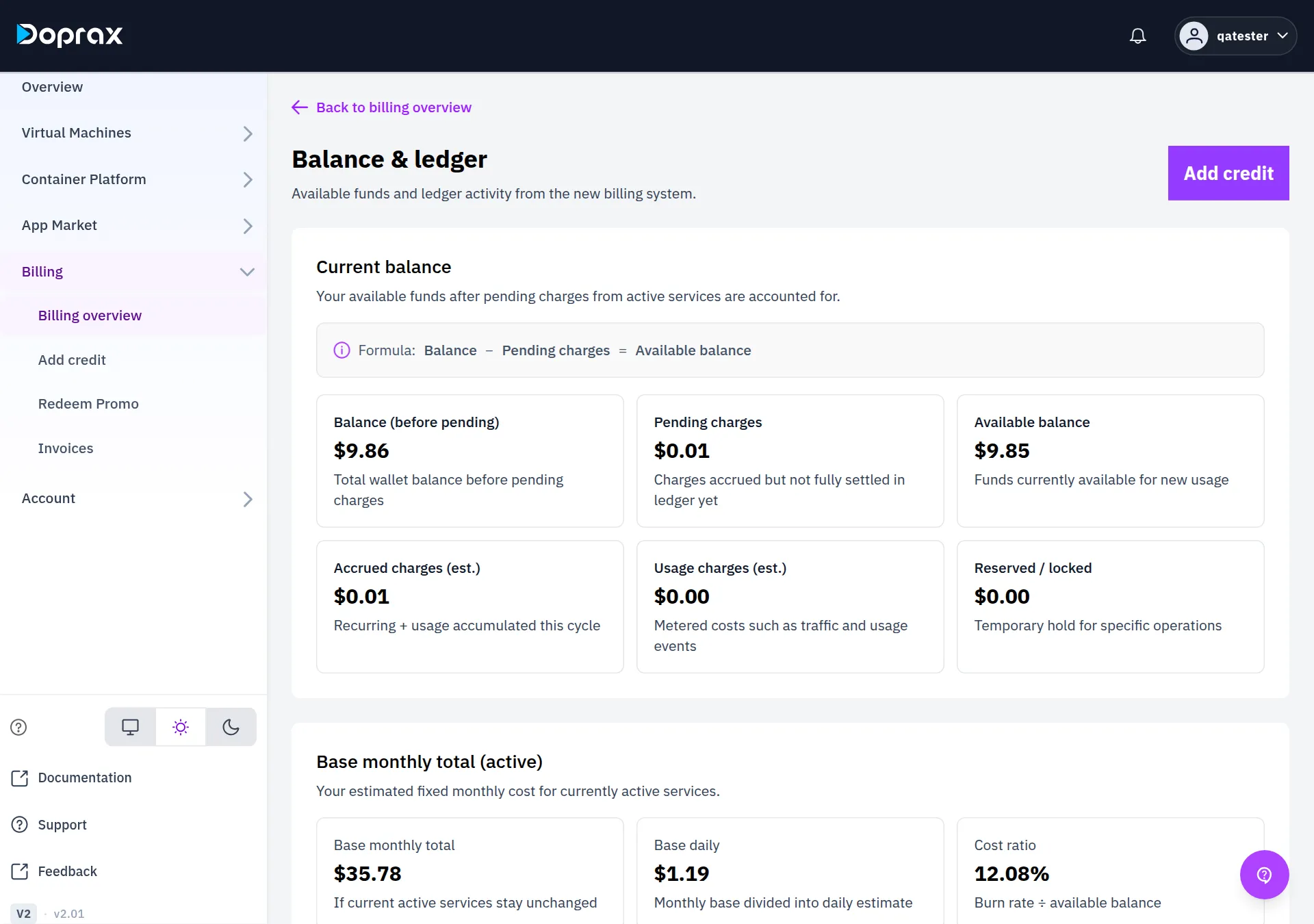
Section titled “The ledger”Ledger & breakdown opens the Balance & ledger screen. It lists every credit and every charge on your account.
- The formula at the top is Balance − Pending charges = Available balance. Pending charges are costs that have built up but are not in the ledger yet.
- Each charge row shows its Charge code. Top-ups and adjustments show no charge code.
- Breakdown on a row shows the quantity, the unit price and the period the charge covers.
Payment history
Section titled “Payment history”Payment history on the Billing overview screen lists every top-up: Date, Provider, Amount, Status and Reference.
- A card payment is listed with the provider
airwallex, the company that processes cards for Doprax. - For a card payment, Amount is what your card was charged, with the card fee included. The credit you received is that amount minus the fee. See Add credit.
- Status is
succeeded,pending,failedorrefunded. Only a succeeded payment has added credit.
Alerts
Section titled “Alerts”The Alerts section of the Billing overview screen counts your alerts (Total alerts, Open, Resolved) and lists them. Balance alerts depend on how many days your credit will last at the present rate:
| Level | When |
|---|---|
| Low | Credit lasts 7 days or less |
| Critical | Credit lasts 2 days or less |
| Exhausted | Credit lasts 0 days, or the balance is $0 or less |
While there is no spending to measure, the screen says “Financial risk signals will appear once we have a reliable usage rate”.
You are also warned by email. What happens at each level, and at zero, is on When your credit runs low.
Invoices
Section titled “Invoices”Billing > Invoices is marked Preview mode. The screen says: “This is an early rollout. Legacy billing remains the source of truth during the transition.”
It lists the invoices the new billing system has produced, with filters for invoice number, status and date. The list can be empty. The screen then says: “No invoices yet. Invoices will appear here once billing activity begins.”
For a record of what you paid, use Payment history. For a record of what you were charged, use the ledger.
Checked against the product on 12 October 2026.